

















The Steam Family Sharing players switch decides whether players on a game borrowed through Steam Family Sharing are let in. The panel’s help line says: “Lets players in on a game borrowed through Steam Family Sharing. Off stops banned players coming back on a borrowed copy.”
Steam Family Sharing is a Steam feature: one account owns a game and other accounts in the family play it. The game’s own name for the setting is FamilySharing. It is kept in the world’s Sandbox_config.sbc under <Settings>.
Turn it off
- On the Space Engineers panel, choose Stop at the top of the page. The world is saved as it stops.
- Open the Config Editor page.
- Choose the tab that starts with World settings.
- Find the Players group (1). Turn Steam Family Sharing players off.
- Choose Save, then Start.
The game reads world settings when it starts, so the change works from that start. The server must be stopped to save: the page says “Stop the server to change these settings.”
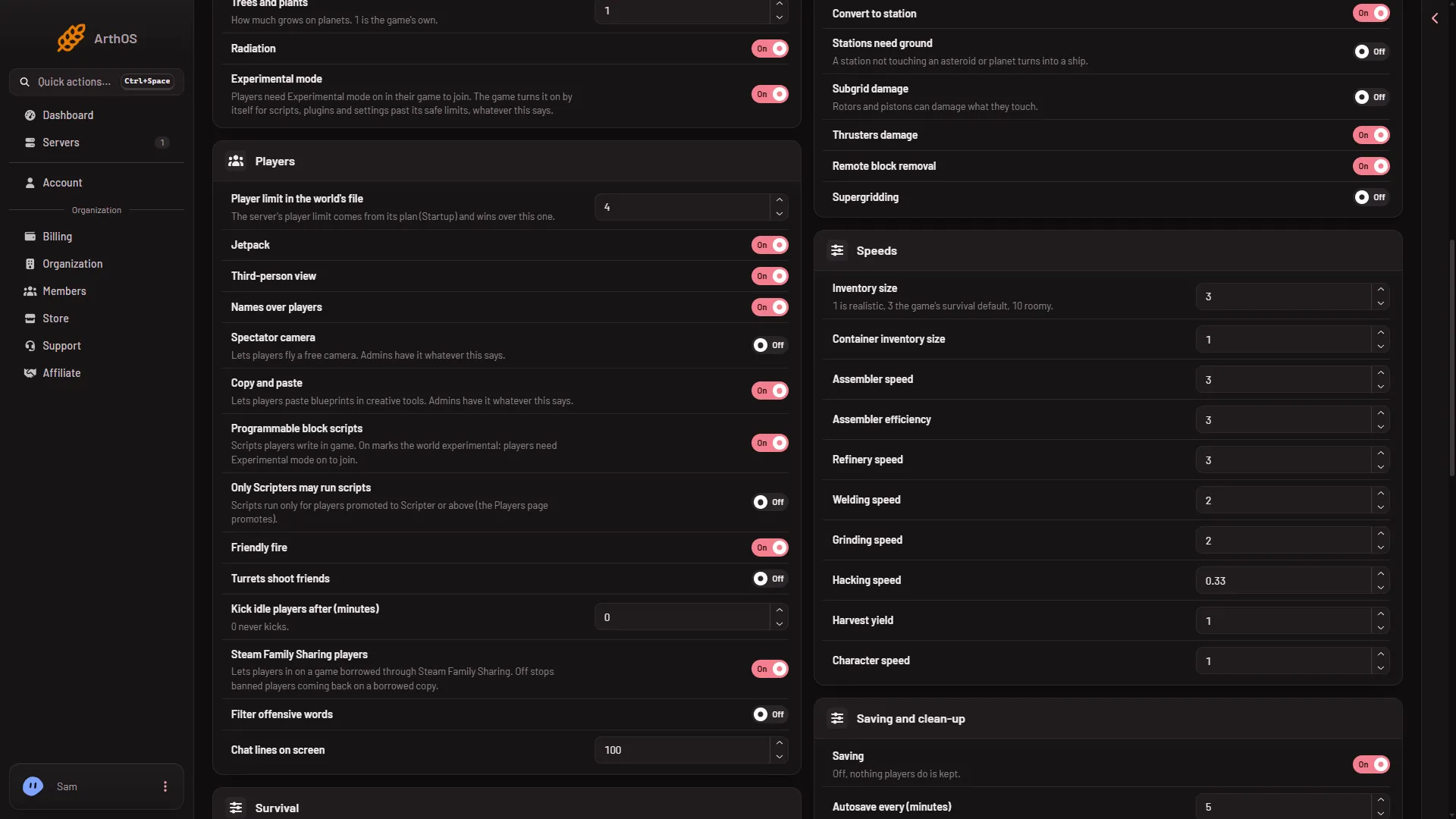
- Players
What turning it off costs
With the switch off, players on a borrowed copy are not let in, whether or not they were ever banned. Turn it off only if bans matter more to you than letting those players in. To let them in again, turn the switch on, save with the server stopped, and start.
Bans still do the work
A ban is placed from the Players page: see ban a player. To let a player back, see unban a player.
If it does not work
- Save is greyed out. The server is not stopped. Stop it and wait until it shows offline.
- There is no World settings tab. A new server shows only Passwords and Server settings until it has started twice: the first start makes the world, the next start names it as the world that loads. Start it again (or restart it), then stop it to change world settings. The same happens after Make it at the next start on the World page. Use this world shows the tab at once.
- A banned player is still in. Check the ban is on their account, that the switch is off, and that the server was started after you saved.