
















World settings are the rules of one world: survival or creative, meteors, how fast things build, how often it saves. You change them in the Config Editor, on the World settings tab, and you can only save them while the server is stopped.
The reason is simple. The game writes the world’s own settings file every time it stops. If you changed it while the server ran, the game would write over your change. So stop first, change, save, then start.
Self-hosters: world settings live in the world’s Sandbox_config.sbc, under <Settings>. The game’s key for each row is printed in backticks below. Three keys are spelled oddly in the game’s own file (AFKTimeountMin, EnableWolfs, and AutoRestatTimeInMin on the server settings tab). They are spelled that way in the game, not in this guide.
Change a world setting
- Open your server in the panel and choose Stop. Wait until the status says Offline.
- Open the Config Editor tab.
- Choose the World settings tab (1). Its name ends with your world’s name, for example World settings: Star System.
- Change the rows you want. A changed row shows a Changed tag, and the bottom bar counts Unsaved changes.
- Choose Save.
- Choose Start. The game reads the new values as it starts.
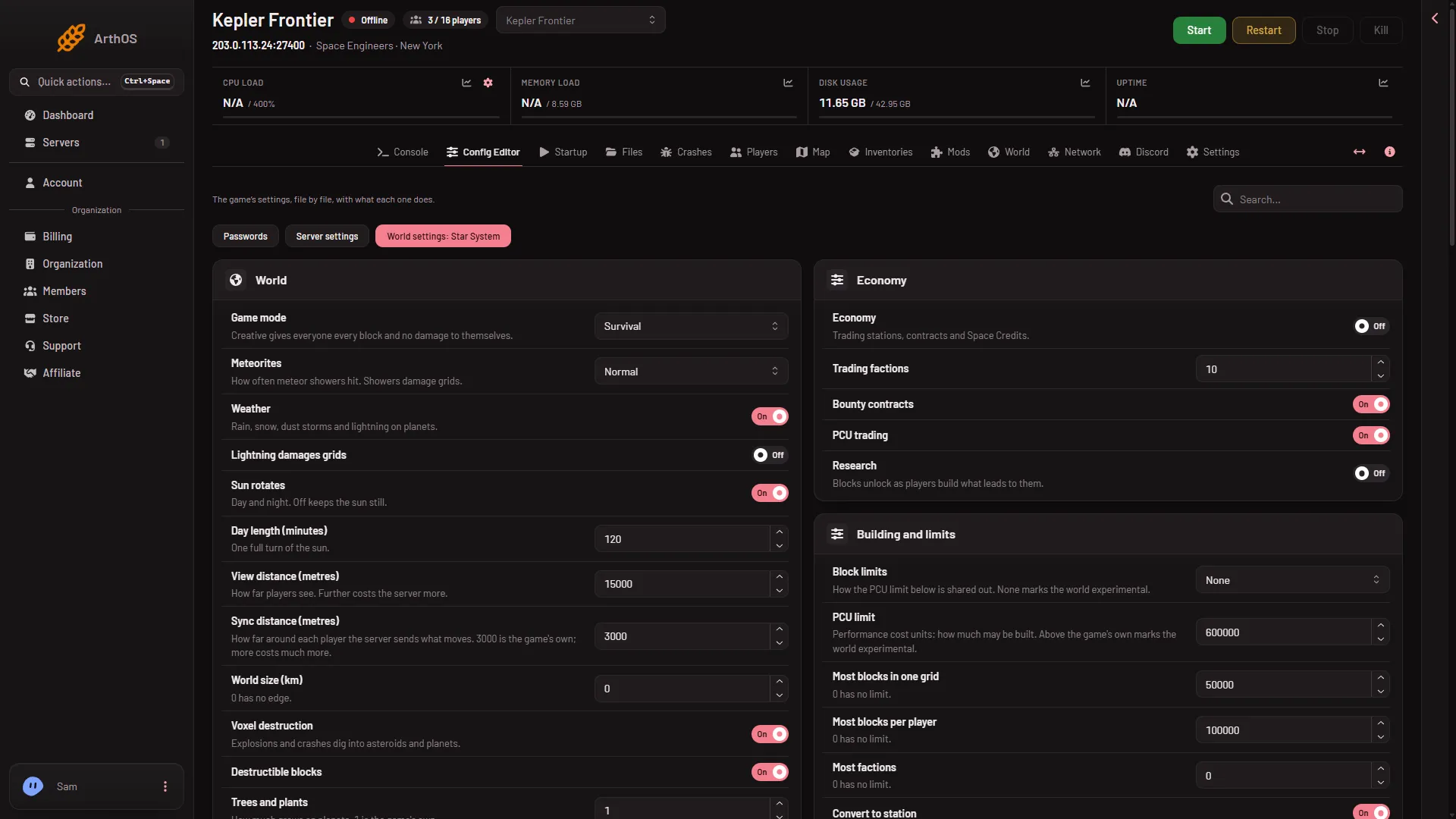
- World settings tab
- Game mode
- Meteorites
If the server is running, you can still type a value, but Save stays disabled and a note explains that the game writes this file when it stops. Stop the server and the button works.
A new server shows only Passwords and Server settings until it has started twice: the first start makes the world, the next start names it as the world that loads. Start it again (or restart it), then stop it to change world settings. The same happens after Make it at the next start on the World page. Use this world shows the tab at once. The tab does not check that the world’s folder is there. See the Config Editor guide for the other tabs.
Every row below is a switch (On or Off), a number or a list. The panel limits each number to a range the game accepts. If a row has no help line, the label says what it is.
World
How the world itself behaves.
- Game mode (
GameMode): Survival or Creative. Creative gives everyone every block and no damage to themselves. - Meteorites (
EnvironmentHostility): how often meteor showers hit: None, Normal, Cataclysm or Cataclysm unreal. The game’s own screens call the last one Armageddon. Showers damage grids (a grid is a ship or a station). See the meteorites guide. - Weather (
WeatherSystem): rain, snow, dust storms and lightning on planets. - Lightning damages grids (
WeatherLightingDamage): lets lightning damage what it hits. - Sun rotates (
EnableSunRotation): day and night. Off keeps the sun still. Day length (minutes) (SunRotationIntervalMinutes) is one full turn of the sun. - View distance (metres) (
ViewDistance): how far players see. Further costs the server more. - Sync distance (metres) (
SyncDistance): how far around each player the server sends what moves. 3000 is the game’s own; more costs much more. - World size (km) (
WorldSizeKm): 0 has no edge. Anything that leaves a sized world is deleted by the game. - Asteroid density (
ProceduralDensity): how many asteroids are made in empty space. 0 makes none. Keen Software House, the game’s makers, say this cannot be changed retroactively on a world that already exists, so set it before the world is made. - Voxel destruction (
EnableVoxelDestruction): explosions and crashes dig into asteroids and planets. Off also stops drills from digging. - Destructible blocks (
DestructibleBlocks), Trees and plants (FloraDensityMultiplier, 1 is the game’s own) and Radiation (EnableRadiation). - Experimental mode (
ExperimentalMode): players need Experimental mode on in their game (Options, Game) to join. The game turns it on by itself for scripts, plugins (add-ons the server loads) and settings past its safe limits, whatever this row says. See the Experimental mode guide.
Players
- Player limit in the world’s file (
MaxPlayers): the server’s player limit comes from its plan (the Players value on Startup) and wins over this one. - Jetpack (
EnableJetpack), Third-person view (Enable3rdPersonView), Names over players (ShowPlayerNamesOnHud). - Spectator camera (
EnableSpectator): lets players fly a free camera. Admins have it whatever this says. - Copy and paste (
EnableCopyPaste): lets players paste blueprints in creative tools. Admins have it whatever this says. - Programmable block scripts (
EnableIngameScripts): scripts players write in game. On marks the world experimental, so players need Experimental mode to join. A new server starts with this on. - Only Scripters may run scripts (
EnableScripterRole): Keen’s reference says only players promoted to Scripter or above can use the Edit button on a programmable block. - Friendly fire (
EnableFriendlyFire) and Turrets shoot friends (EnableTurretsFriendlyFire). - Kick idle players after (minutes) (
AFKTimeountMin): 0 never kicks. - Steam Family Sharing players (
FamilySharing): the panel says it “Lets players in on a game borrowed through Steam Family Sharing”. Not checked: which account’s ban the game looks at. - Filter offensive words (
OffensiveWordsFiltering) and Chat lines on screen (MaxHudChatMessageCount).
Survival
The picture shows this group (1).
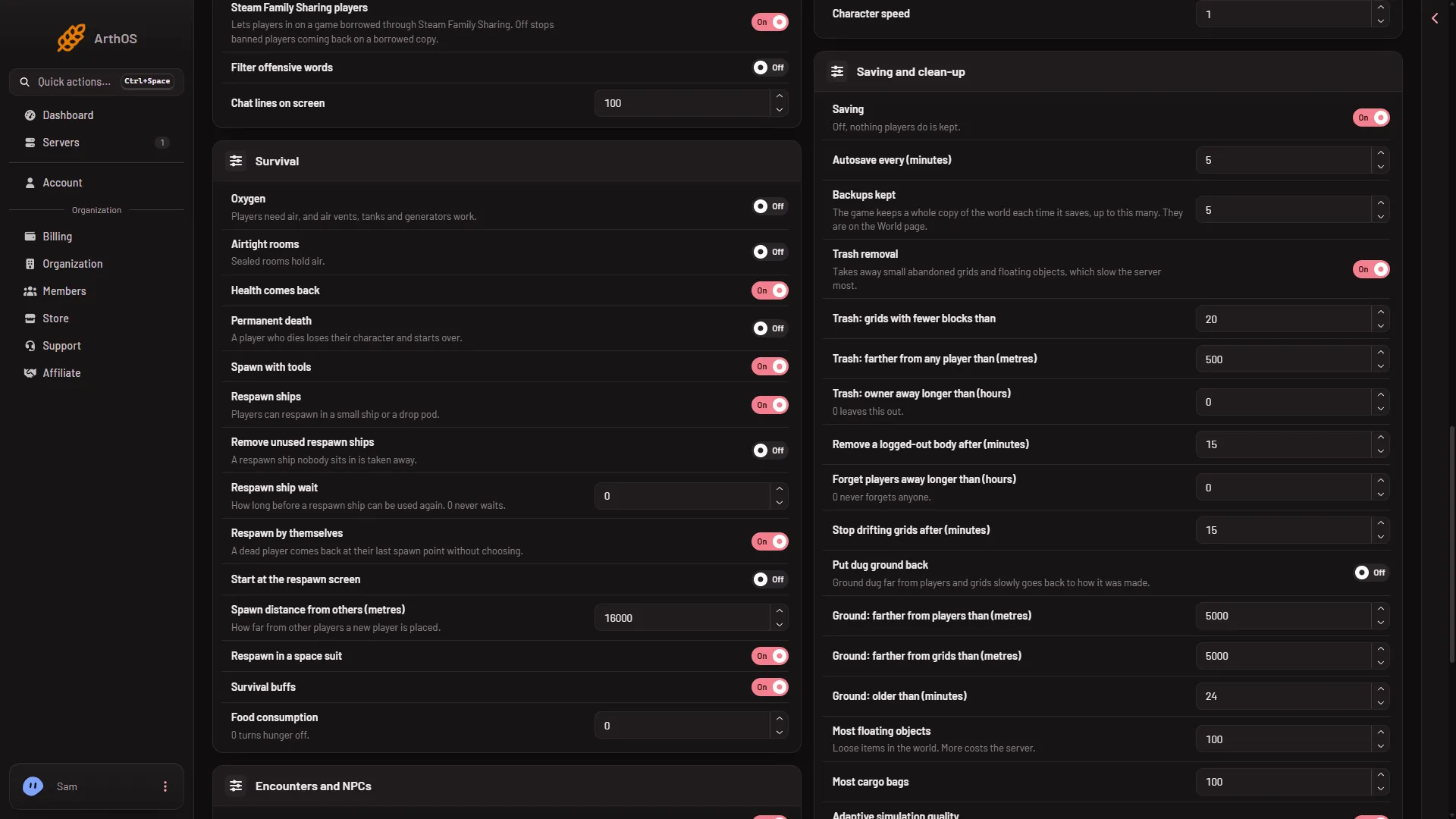
- Survival group
- Oxygen (
EnableOxygen): players need air, and air vents, tanks and generators work. Airtight rooms (EnableOxygenPressurization): sealed rooms hold air. - Health comes back (
AutoHealing), Spawn with tools (SpawnWithTools), Survival buffs (EnableSurvivalBuffs). - Permanent death (
PermanentDeath): players lose everything if their character dies and there are no available respawn points. It can mark the world experimental. - Respawn ships (
EnableRespawnShips): players can respawn in a small ship or a drop pod. Remove unused respawn ships (RespawnShipDelete): a player’s respawn ship is deleted when they leave the server or spawn a new one. Respawn ship wait (SpawnShipTimeMultiplier): how long before a respawn ship can be used again; 0 never waits. - Respawn by themselves (
EnableAutorespawn): automatic respawning at the nearest available respawn point. Start at the respawn screen (StartInRespawnScreen) and Respawn in a space suit (EnableSpaceSuitRespawn). - Spawn distance from others (metres) (
OptimalSpawnDistance): how far from other players a new player is placed. - Food consumption (
FoodConsumptionRate): 0 turns hunger off.
Encounters and NPCs
- Drones (
EnableDrones), Most drones (MaxDrones), Wolves (EnableWolfs), Spiders (EnableSpiders), Most creatures (TotalBotLimit). - Cargo ships (
CargoShipsEnabled). - Encounters in space (
EnableEncounters): wrecks and ships the game places for players to find. Encounters on planets (EnablePlanetaryEncounters) is the planet version. - Container drops (
EnableContainerDrops): supply pods with loot fall now and then. Container drops at least every (minutes) (MinDropContainerRespawnTime) and Container drops at most every (minutes) (MaxDropContainerRespawnTime) set the gap. - Pirates’ PCU (
PiratePCU): how much the pirates may build. PCU is the game’s cost count for blocks.
Economy
- Economy (
EnableEconomy): trading stations, contracts and Space Credits. Once on, the game keeps a few megabytes of store data in the world, and turning it off later does not remove it. - Trading factions (
TradeFactionsCount), Bounty contracts (EnableBountyContracts), PCU trading (EnablePcuTrading) and Research (EnableResearch: blocks unlock as players build what leads to them).
Building and limits
- Block limits (
BlockLimitsEnabled), PCU limit (TotalPCU), Most blocks in one grid (MaxGridSize), Most blocks per player (MaxBlocksPerPlayer) and Most factions (MaxFactionsCount). These work together: see the PCU limit guide. Block limits on None turns every limit off, and the game counts it as experimental. A new server starts with it on None. - Convert to station (
EnableConvertToStation), Stations need ground (StationVoxelSupport: a station not touching an asteroid or planet turns into a ship). - Subgrid damage (
EnableSubgridDamage: rotors and pistons can damage what they touch), Thrusters damage (ThrusterDamage), Remote block removal (EnableRemoteBlockRemoval), Supergridding (EnableSupergridding).
Speeds
The numbers here multiply what the game does. 1 is realistic.
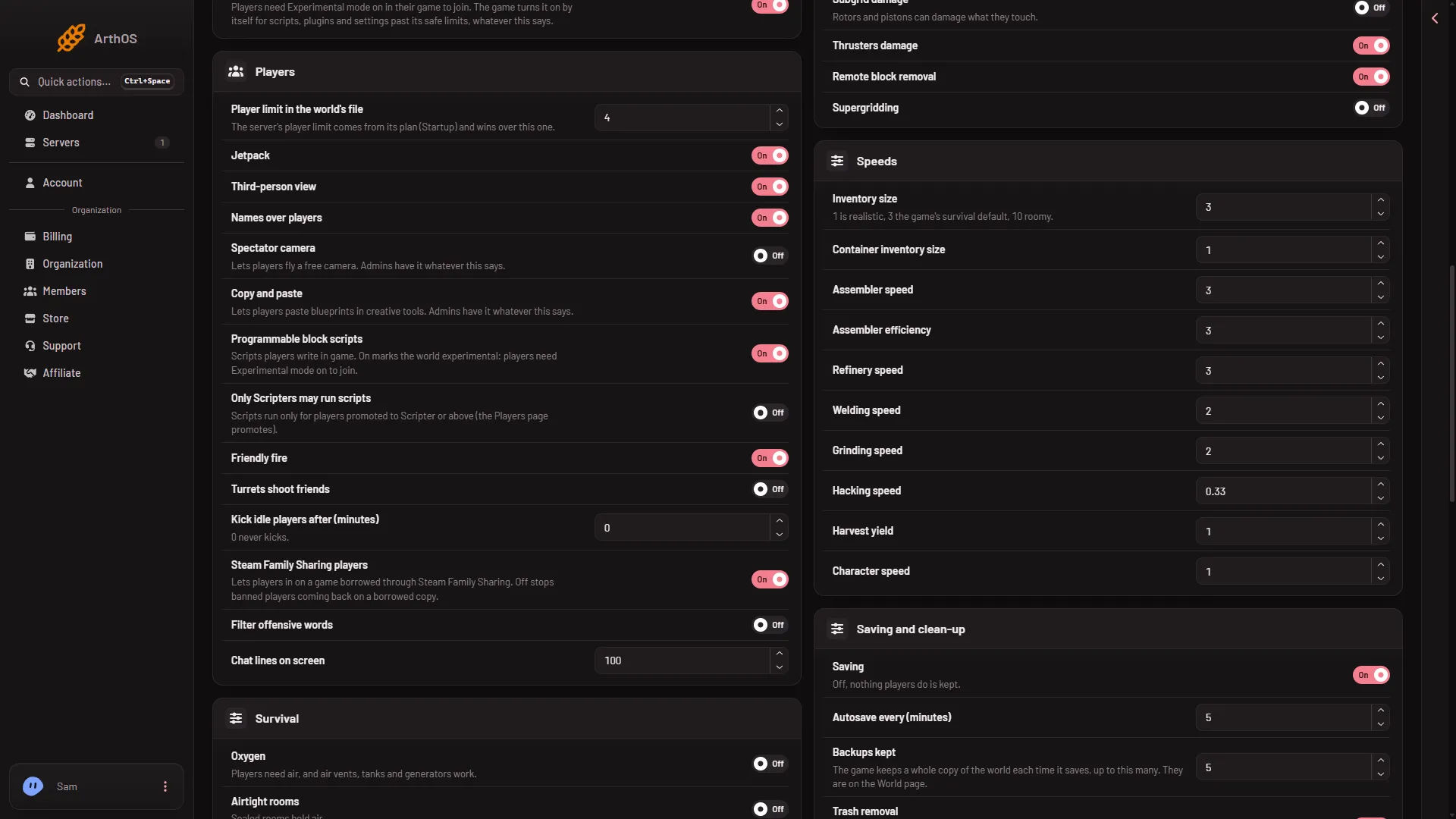
- Speeds group
- Inventory size (
InventorySizeMultiplier) and Container inventory size (BlocksInventorySizeMultiplier): how much a player and a container hold. See the inventory size guide. - Assembler speed (
AssemblerSpeedMultiplier), Assembler efficiency (AssemblerEfficiencyMultiplier) and Refinery speed (RefinerySpeedMultiplier): see the production speed guide. - Welding speed (
WelderSpeedMultiplier), Grinding speed (GrinderSpeedMultiplier), Hacking speed (HackSpeedMultiplier), Harvest yield (HarvestRatioMultiplier) and Character speed (CharacterSpeedMultiplier).
Saving and clean-up
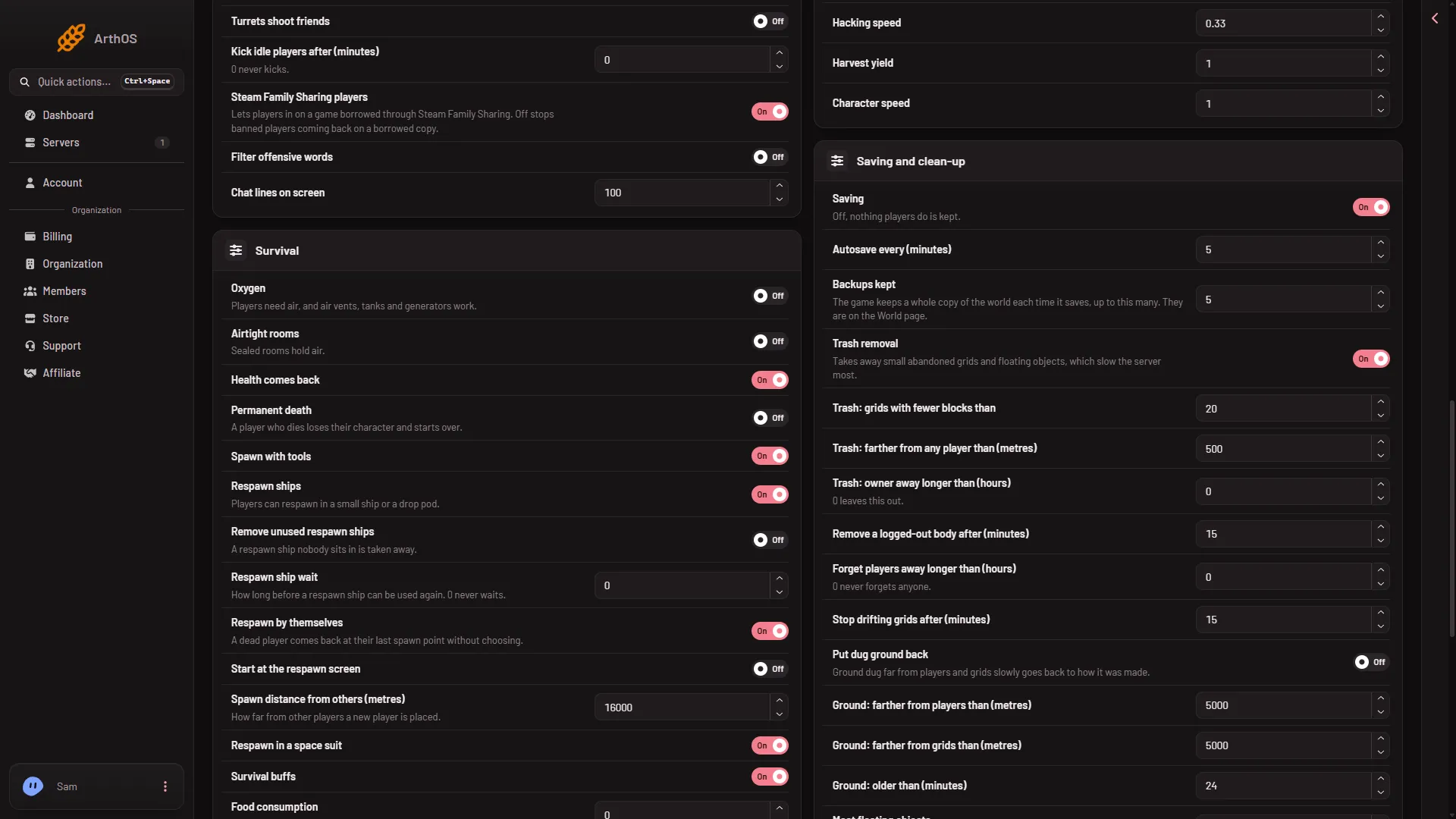
- Saving and clean-up group
- Saving (
EnableSaving): leave this on. What it does exactly was not checked: see the autosave guide. - Autosave every (minutes) (
AutoSaveInMinutes): how often the game saves by itself. A Kill from the panel does not save, so you lose what happened since the last autosave. - Backups kept (
MaxBackupSaves): the game keeps up to this many copies of the world, made at each save. They are on the World page. - Trash removal (
TrashRemovalEnabled) takes away small abandoned grids and floating objects, which slow the server most. Its rows set which grids go: Trash: grids with fewer blocks than (BlockCountThreshold), Trash: farther from any player than (metres) (PlayerDistanceThreshold), Trash: owner away longer than (hours) (PlayerInactivityThreshold, 0 leaves this check out), Remove a logged-out body after (minutes) (PlayerCharacterRemovalThreshold), Forget players away longer than (hours) (RemoveOldIdentitiesH, 0 never forgets anyone) and Stop drifting grids after (minutes) (StopGridsPeriodMin). A gentler clean-up is a lower block count, a higher distance and a higher number of hours. See the trash removal guide. - The game’s trash flags (
TrashFlagsValue) decide which of those checks are used. They are not a named row. A world’s file holds them, so Advanced, Show them lists them; the row’s exact name was not checked. A grid is removed only when it passes the checks the game has turned on. - Put dug ground back (
VoxelTrashRemovalEnabled): ground dug far from players and grids slowly goes back to how it was made. Ground: farther from players than (metres) (VoxelPlayerDistanceThreshold), Ground: farther from grids than (metres) (VoxelGridDistanceThreshold) and Ground: older than (minutes) (VoxelAgeThreshold) set when. - Most floating objects (
MaxFloatingObjects): loose items in the world. More costs the server. - Most cargo bags (
MaxCargoBags): the most Temporary Containers at once (Keen’s default is 100). When a block is destroyed or ground down, its cargo is packed into one instead of dropping as loose items. - Adaptive simulation quality (
AdaptiveSimulationQuality): simulates less detail when the server is busy.
Rows you cannot change here
Some rows show as locked, because the panel sets them every time the server starts: the server’s name, the world that loads, the new world’s name, the plugin list and the network settings. Each has a link to the page that does change it, such as Open Startup or Open World. The lists of admins, bans and reserved slots are on the Players page.
Settings the page has no label for sit under Advanced with a name made from the game’s own key. Use Show them to open that group.
If it does not work
- Save is greyed out. The server is not offline. Choose Stop, wait for Offline, and try again.
- A setting went back after a start. A file edited by hand while the server ran is written over when the game stops. Stop the server first, then change it on World settings and save.
- The new world has different settings. A new world takes the settings of the world that ran last, not the ones you changed on another world.
- Players cannot join after a change. Players need Experimental mode on in Options, Game. A new server already needs it: scripts are on and Block limits is on None, and the game counts both. To check, open the Console and find
Experimental mode:afterLoading session, then the reason line under it. - Lowered a size and items vanished. See the inventory size guide: lowering it cuts what does not fit.
More about Space Engineers servers on Loafhosts.
Sources: spaceengineers.wiki.gg: World Settings, spaceengineers.wiki.gg: Experimental mode, spaceengineers.wiki.gg: SessionSettings