
















Almost everything you care about lives in one folder: Instance. It holds the server’s config, every world, the downloaded mods and the start logs. Everything else on the Files tab belongs to the game or to the panel. Do not change it.
Open the Instance folder
- Open the Files tab.
- Open the folder named
Instance.
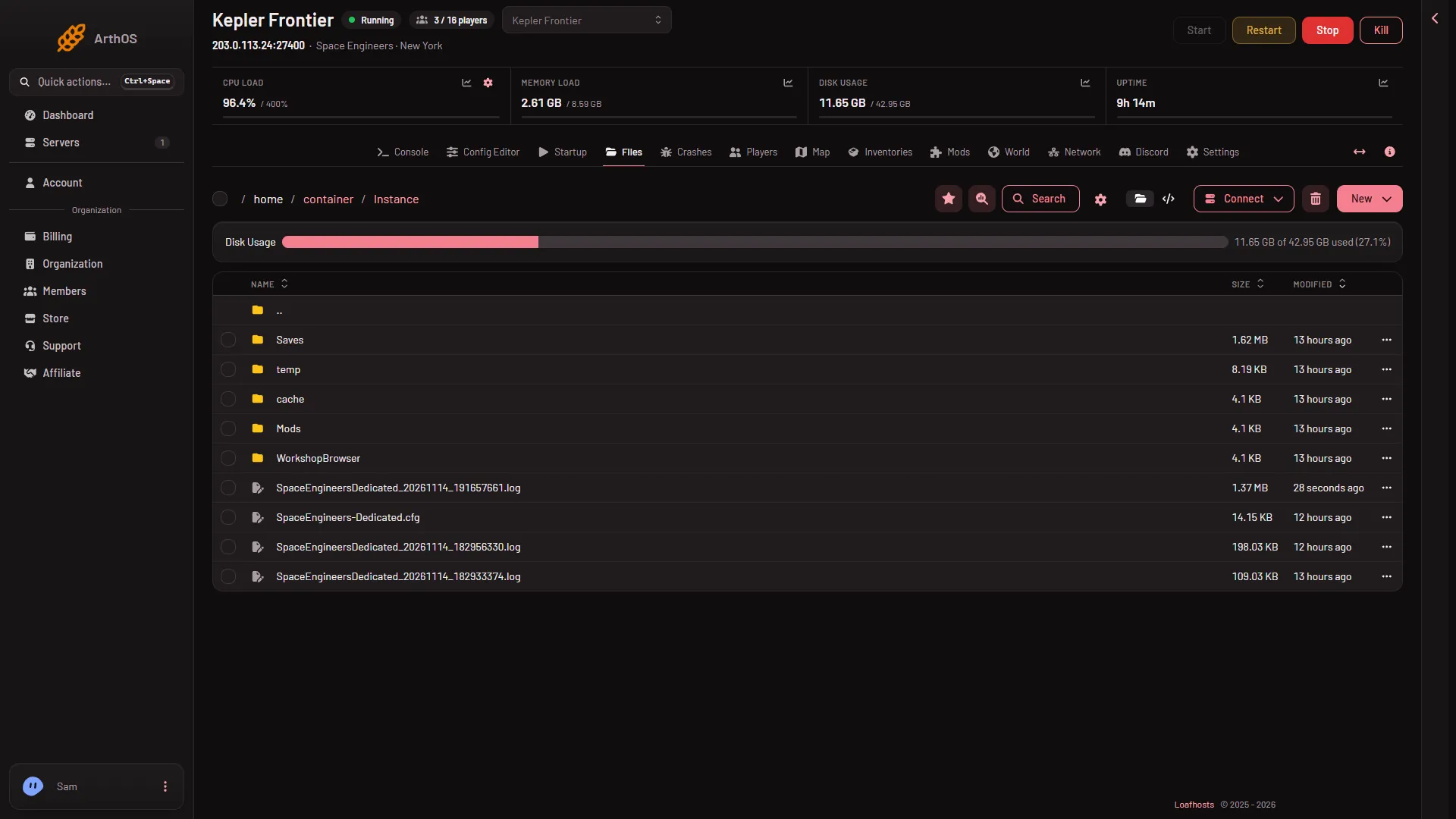
- Saves
- The server config
- A start log
Inside it:
- Saves (1). One folder for each world. See below.
SpaceEngineers-Dedicated.cfg(2). The server’s settings file (Keen Software House, the game’s makers, keep server settings here). The Config Editor tab changes it for you, so edit it there instead. Changes apply at the next start. Some keys are spelled oddly in this file, for exampleAutoRestatTimeInMin,AFKTimeountMinandEnableWolfs: that is how the game spells them.SpaceEngineersDedicated_followed by a date and time, ending.log(3). One log for every start. The Console tab shows the same text live.content/244850. The mods the server downloaded from the Steam Workshop, one folder for each Workshop number. It appears after a start that downloads mods.Mods,cache,tempandWorkshopBrowser. Folders the game uses. Do not change them.
Inside a world
Open Saves, then a world’s folder.
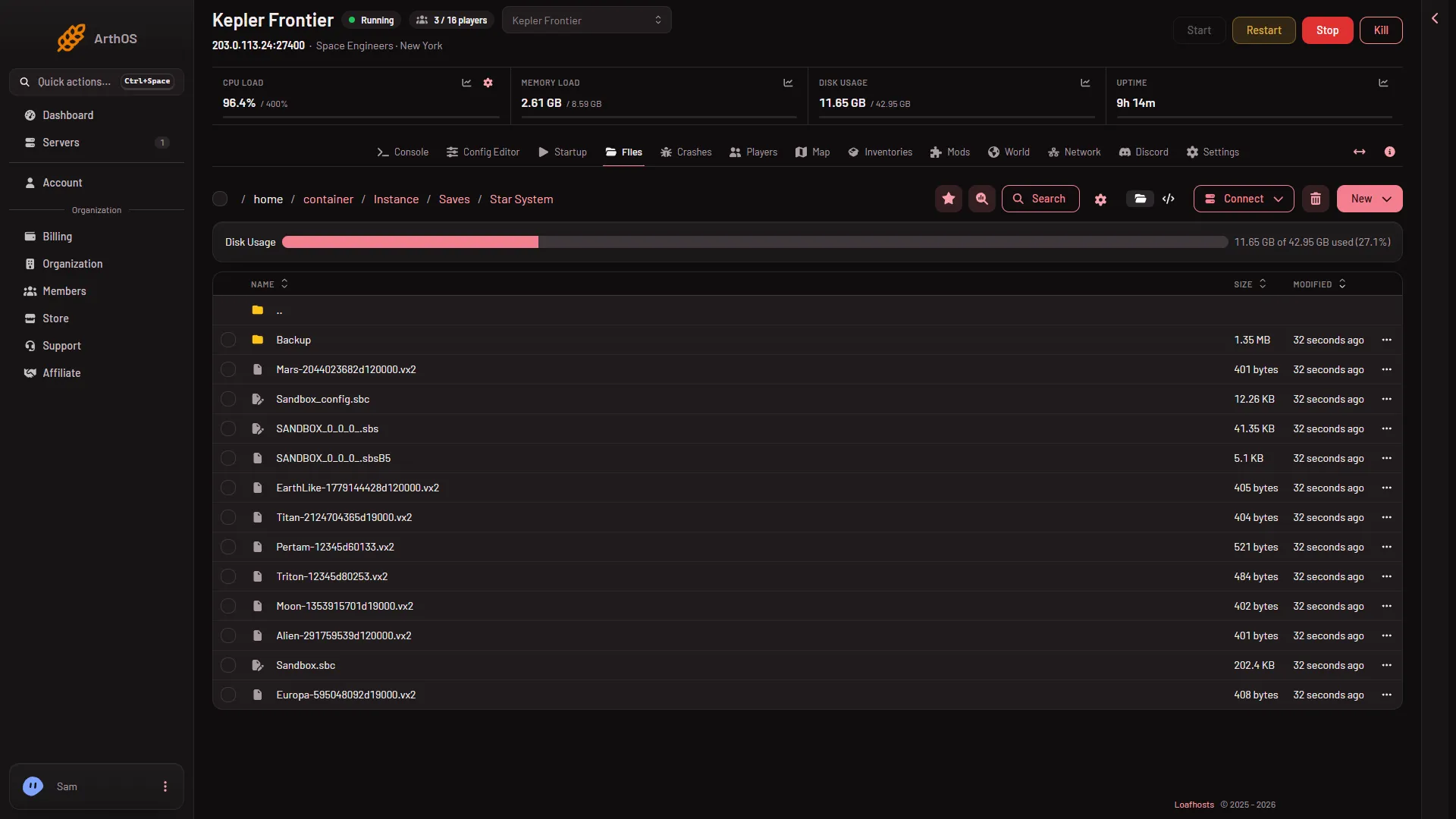
- Backup
- The world settings file
- Sandbox.sbc
Backup(1). The game’s own backups of this one world, made at its autosaves.Sandbox_config.sbc(2). The world’s settings (under<Settings>in the file, for exampleEnableSaving) and its mod list. The game rewrites it at every save. Change it only with the server stopped, and use the Config Editor when you can.Sandbox.sbc(3),SANDBOX_0_0_0_.sbsand the files ending.vx2. The world itself: its objects, and one file for each planet and asteroid.
Folders you should not change
- The game’s own folders.
DedicatedServer64is the game.Contentholds the game’s data and the premade worlds a new world starts from..wineis the runtime the game runs in, about 2.3 GB.steamcmdandsteamappsare what downloads the game. .arthos. The panel’s own folder, named.arthos. It holds the panel tools and their data. The panel rewrites its files before each start, so a change you make there is lost.
If a game file gets damaged, Reinstall Server on Settings puts the game files back. It does not touch Instance. Back up first all the same.
Upload, download and SFTP
- Upload. Use New, then File from Upload or Directory from Upload.
- Download. Open a file’s row menu and choose Download. For a folder, choose Archive on it first, then download the archive.
- SFTP. Press Connect, then via SFTP. SFTP Details shows what to type into your SFTP program.
To bring a world in from your own game, the World tab has a guided way that is easier than copying files by hand.
Deleted files go to the Trash
Deleting a file moves it to the Trash, a button on the Files page. Open it and use Restore to… to get a file back. Trash counts against your disk space, and a deleted item stays there for 3 days.
If you changed a file and the server will not start
Put the old file back from the Trash, or restore a backup from Settings, Backups (Restore). Start again and read the Console for the first line marked ERROR.