
















The Console tab shows the game’s own log, live. Each line is tagged so you can see quickly what it is about: Steam, World, Mods, and, with the panel tools on, Join, Leave, Chat and Kick. Open it first on any server page.
What each line shows
Every line has a level on the left (INFO or WARN, and ERROR for real faults), then a tag, then the text. A line with no tag is the game’s own text that has no tag.
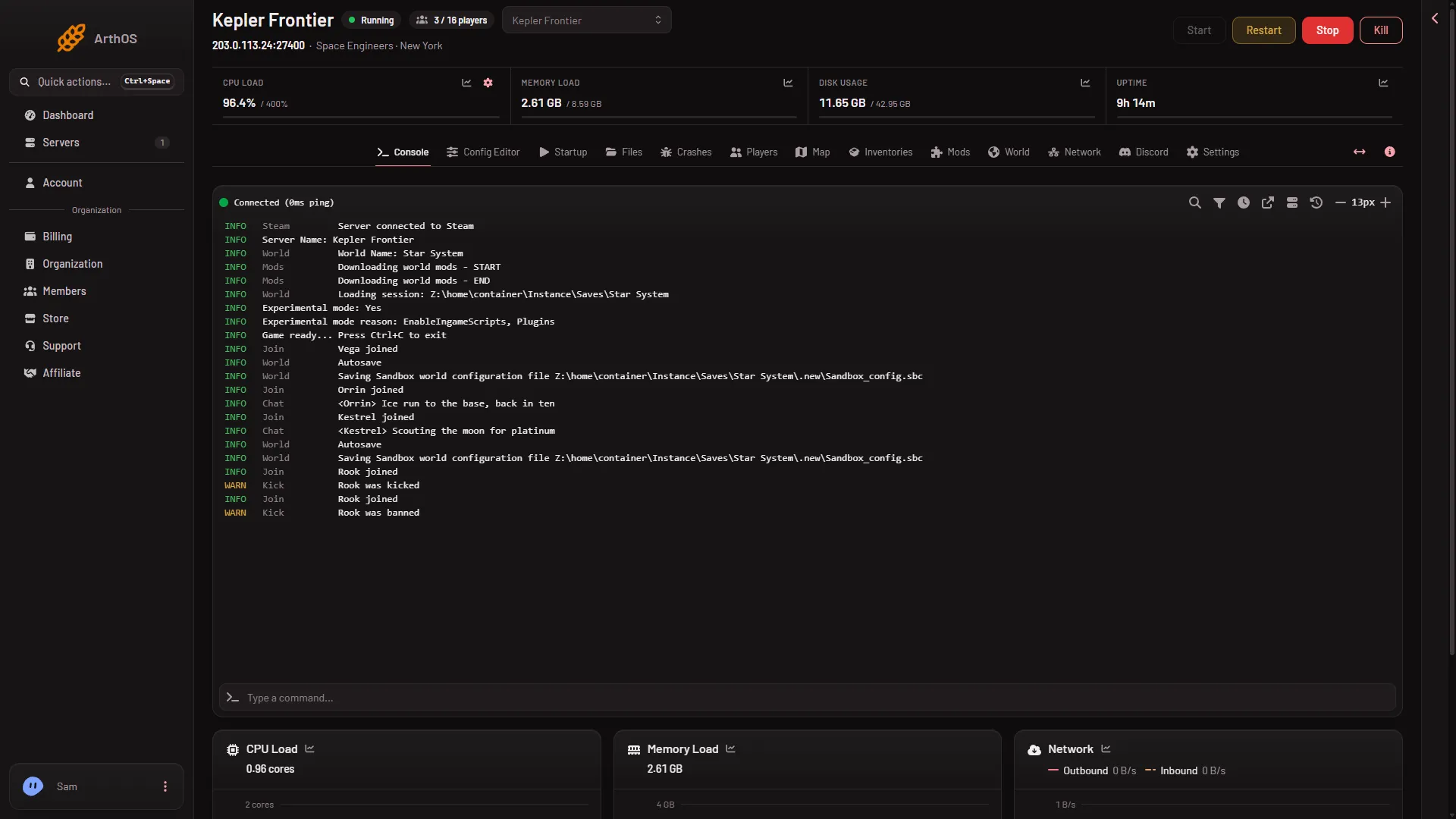
The tags mean:
- Steam. The server reached Steam, for example “Server connected to Steam”.
- World. Which world loads, and the autosave and saving lines.
- Mods. The mod downloads at a start: “Downloading world mods - START” and “END”.
- Join and Leave. Someone came on or went off. Only with the panel tools on.
- Chat. What a player typed, shown as the name in angle brackets and the text. Only with the panel tools on.
- Kick. A kick or a ban made through the panel, shown as WARN. Only with the panel tools on.
- Tools. Any other line the panel tools write, for example that they loaded. Only with the panel tools on.
The panel tools write only joins, leaves, chat, kicks and bans (and their own status lines) to the console. Other actions, such as a respawn or giving an item, do not appear here. See the panel tools guide.
Lines worth knowing
- Game ready. A line that says
Game ready... Press Ctrl+C to exitmeans the server has finished starting and players can join. The first start makes the world. For about 11 minutes after it, the server builds .NET files (the game’s runtime) in the background, so it works harder and may run slower. A later start of a small world took about half a minute on a Loafhosts server (measured: 31 seconds, Star System with three mods). - Experimental mode. After the
Loading sessionline the log saysExperimental mode: YesorNo. When it says Yes, the next line,Experimental mode reason:, names the causes, for exampleBlockLimitsEnabled, EnableIngameScripts, Pluginson a new server (a plugin is an add-on the server loads: here, the panel tools). In the picture the reason line is made up. Players need Experimental mode on in their game (Options, Game) whenever the line says Yes, whatever the panel tools say. See the experimental mode guide. - Autosave.
AutosaveandSaving ... Sandbox_config.sbclines come from the game saving the world.
Lines that match words like “exception”, “failed” or “out of memory” show as ERROR. Open Crashes for the findings, in the crashes guide.
Show the clock
The game’s lines carry a date and a clock inside the text, but the console hides its own clock by default. To show it:
- Open the Console tab.
- In the toolbar above the lines, press the clock button, Show Timestamps.
Press it again to hide them (Hide Timestamps).
Search and filter
- Press the magnifying glass in the toolbar, Search Console, and type part of a line.
- Or press the funnel, Filter console, to pick a severity or a source.
The font size buttons at the right of the toolbar make the text bigger or smaller.
If you see no Join, Chat or Kick lines
The panel tools are off, or have not loaded yet. They load at the next start after you turn them on. The Join, Leave, Chat and Kick tags only come from the tools. Without them you can still see who is on from the Steam player query (the list of players the game reports to Steam) on the Players page.