
















The World page is where you choose which world your Space Engineers server loads, put an earlier copy back, start a new world, and bring in one from your own game. Most changes here take effect at the next start. The server is never restarted for you.
A world is a folder in the server’s Saves folder. The server loads one at a time. The page has up to five cards: Worlds, Planets, Backups, New world and Bring a world in. A card with nothing to show, or that your role may not use, is left out. The page refreshes itself every 20 to 30 seconds.
Worlds
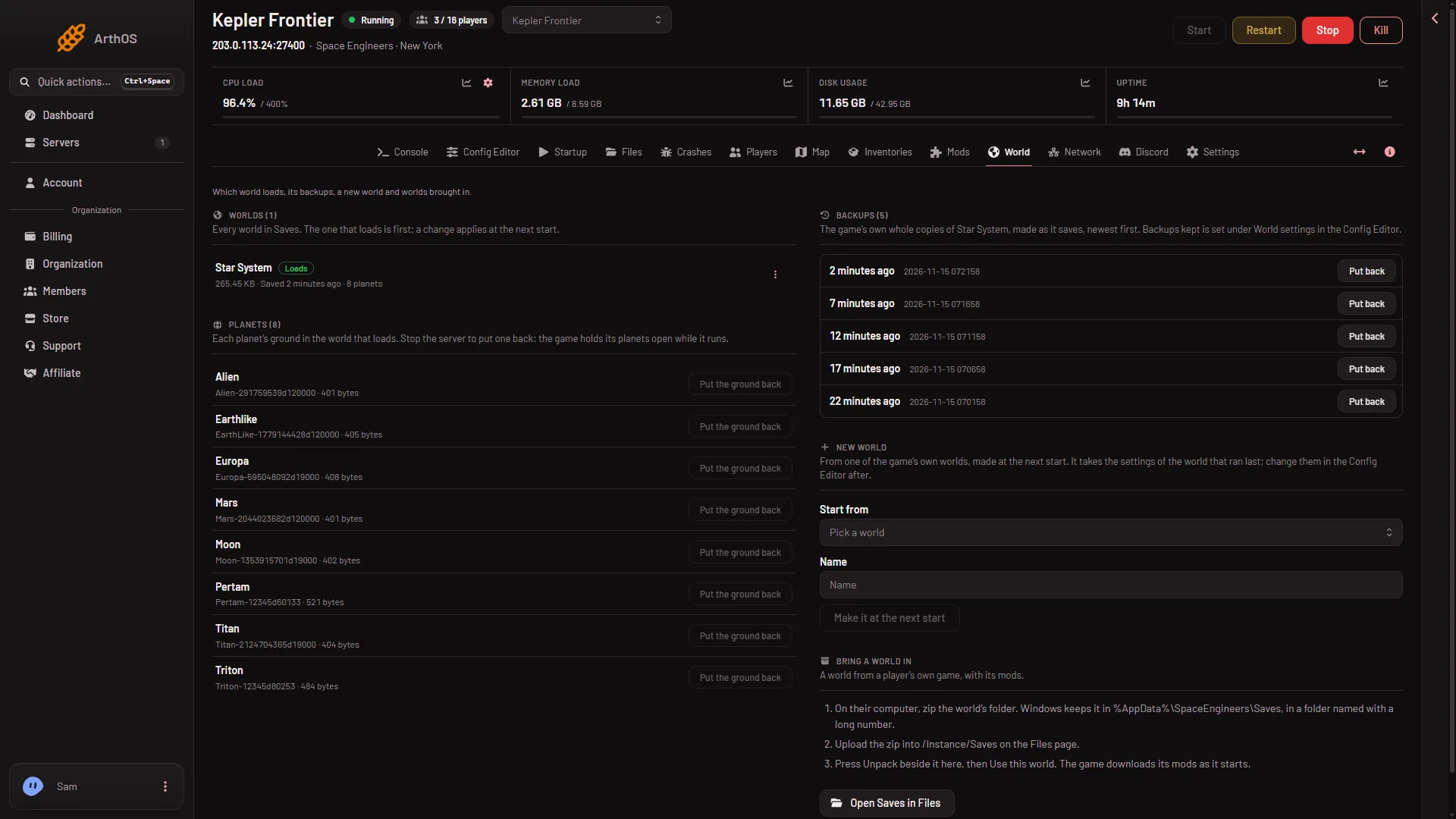
Worlds lists every world on the server. The one that loads is first and has a green Loads tag (1). Each row shows its size, when it was last saved, and a number of planets. That number counts the world’s planet files, and asteroid files in the game’s asteroid worlds.
A new server starts with Star System, made at the first start. Players can join once the Console shows Game ready. An unpacked zip that holds one world folder is listed as zip name/world folder, for example My Frontier World/Frontier. That is normal.
- The world that loads
- Put back
- Put the ground back
- Start from
- Make it at the next start
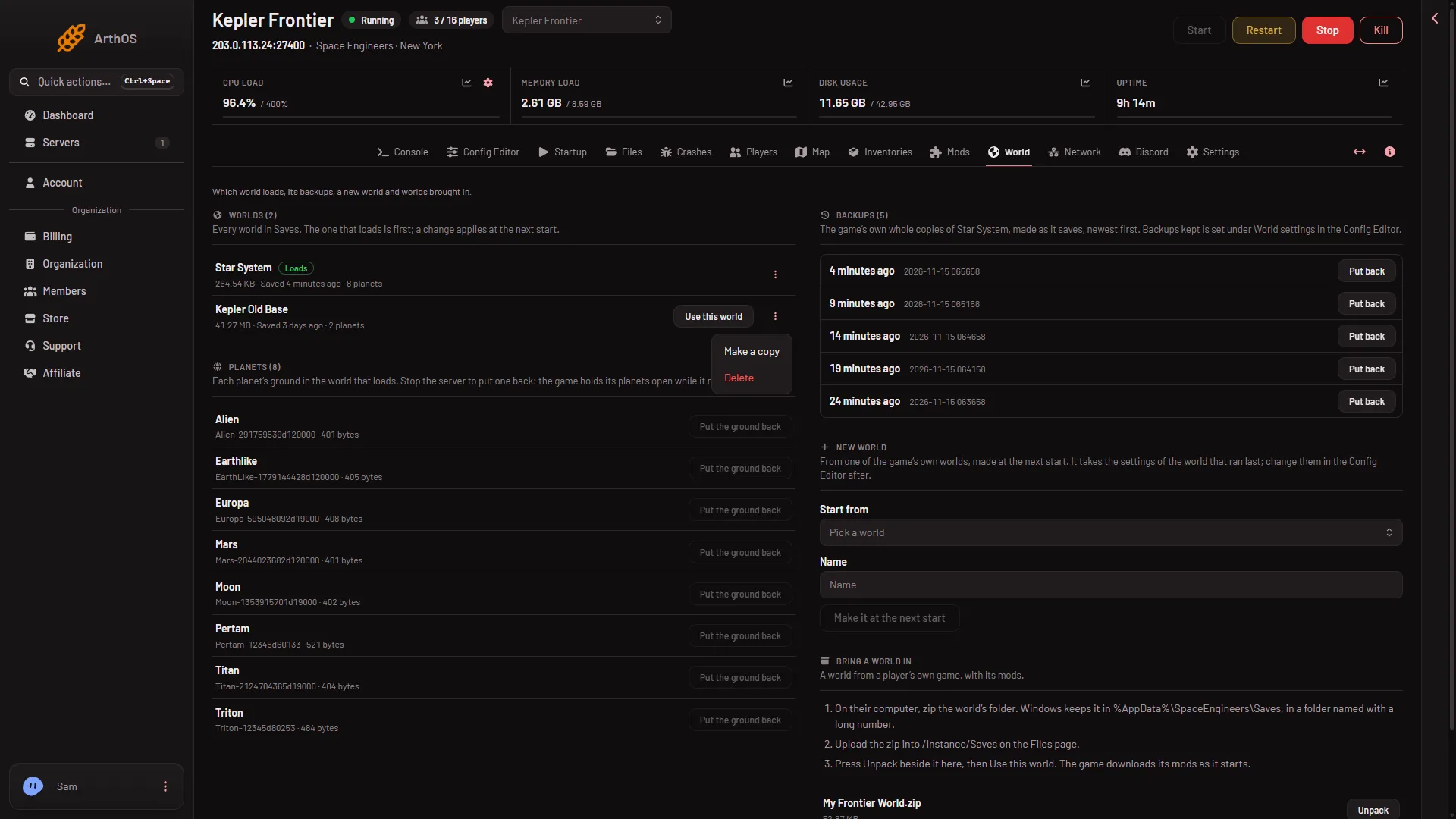
With two or more worlds, a world that does not load has a Use this world button and a three-dots button, More for (name).
- Use this world
- Make a copy
- Delete
- Use this world makes the server load that world from the next start. Nothing stops or restarts.
- Make a copy asks for Name of the copy (up to 60 characters). It copies the whole folder, and works while the server runs. With the panel tools on, press Save now on the Players page first and wait a few seconds (the button does not wait for the save to end), so the copy has what was just built. It does not change which world loads.
- Delete sends the world and its backups to the server’s trash for 3 days, where Restore to… on the Files page can bring them back. The world that loads cannot be deleted: pick another one first. For a zip unpacked as
zip name/world folder, Delete removes the outer folder.
If the world that loads is not on the server, a warning says so: choose another world, or put its folder back first.
Planets
Planets lists the planet files of the world that loads. Put the ground back undoes every hole dug in that planet and gives it the ground the game made. Grids on it stay. It works only while the server is stopped. The old ground is kept in .arthos/se/aside in Files.
Backups
Backups lists the game’s own whole copies of the world, made as it saves, newest first. They are not the panel’s backups under Settings. How many are kept is Backups kept (MaxBackupSaves) under World settings in the Config Editor. A new server shows only Passwords and Server settings until it has started twice: the first start makes the world, the next start names it as the world that loads. Start it again (or restart it), then stop it to change world settings. The same happens after Make it at the next start.
Put back copies that backup into a new world called (world) (backup (time)) and makes it the world that loads from the next start. The original and the other backups stay. See put back a backup.
New world
Choose Start from (one of the game’s own worlds), type a Name, then press Make it at the next start. It works before a first start too. The game builds it at the next start, and the panel keeps loading it after that, so it is made once. It takes the settings of the world that ran last. The old world loses its Loads tag at once but is not deleted: press Use this world on it to cancel the new world before the start. See make a new world.
Bring a world in
- On your computer, zip the world’s folder. Windows keeps it in
%AppData%\SpaceEngineers\Saves, in a folder with a long number. - Press Open Saves in Files and upload the zip into
/Instance/Saves. - Back on World, press Unpack beside the zip, then Use this world. The game downloads its mods as it starts.
If it does not work
- Nothing changed after Use this world. It applies at the next start. Restart the server from the top of the page.
- Put the ground back is greyed. Stop the server first.
- The world could not load. Crashes reads Crashed or Failed to start: read the finding.
- A name is refused. Use 1 to 60 letters, digits, spaces or
- _ ' ( ) ,, and a name no other world has. - Unpack says there is no world. The zip must hold a
Sandbox.sbc, in its top folder or one folder down. - The zip is not listed under Bring a world in. Its name has marks the panel does not accept. Rename it with letters, digits and spaces.
Every change is recorded in Settings, Activity.