
















If the Crashes tab says “The world could not be loaded”, a file of the world is missing or damaged. A common case is a planet’s .vx2 file that was taken out, for example deleted in Files or lost when an upload replaced the world’s folder. The game cannot load the world without it. The fix is to put back one of the game’s backups from the World page, or to choose another world there.
The server then stops by itself, and the panel shows the start as Crashed or Failed to start: read the finding, not the word. The picture is made up.
1. Read the finding
- Open the Crashes tab.
- Choose the start that failed.
- Under What the panel can tell (N), find The world could not be loaded. Its category is World.
The log line under it names what the game could not read. In the picture, it names a planet’s storage file with the ending .vx2.
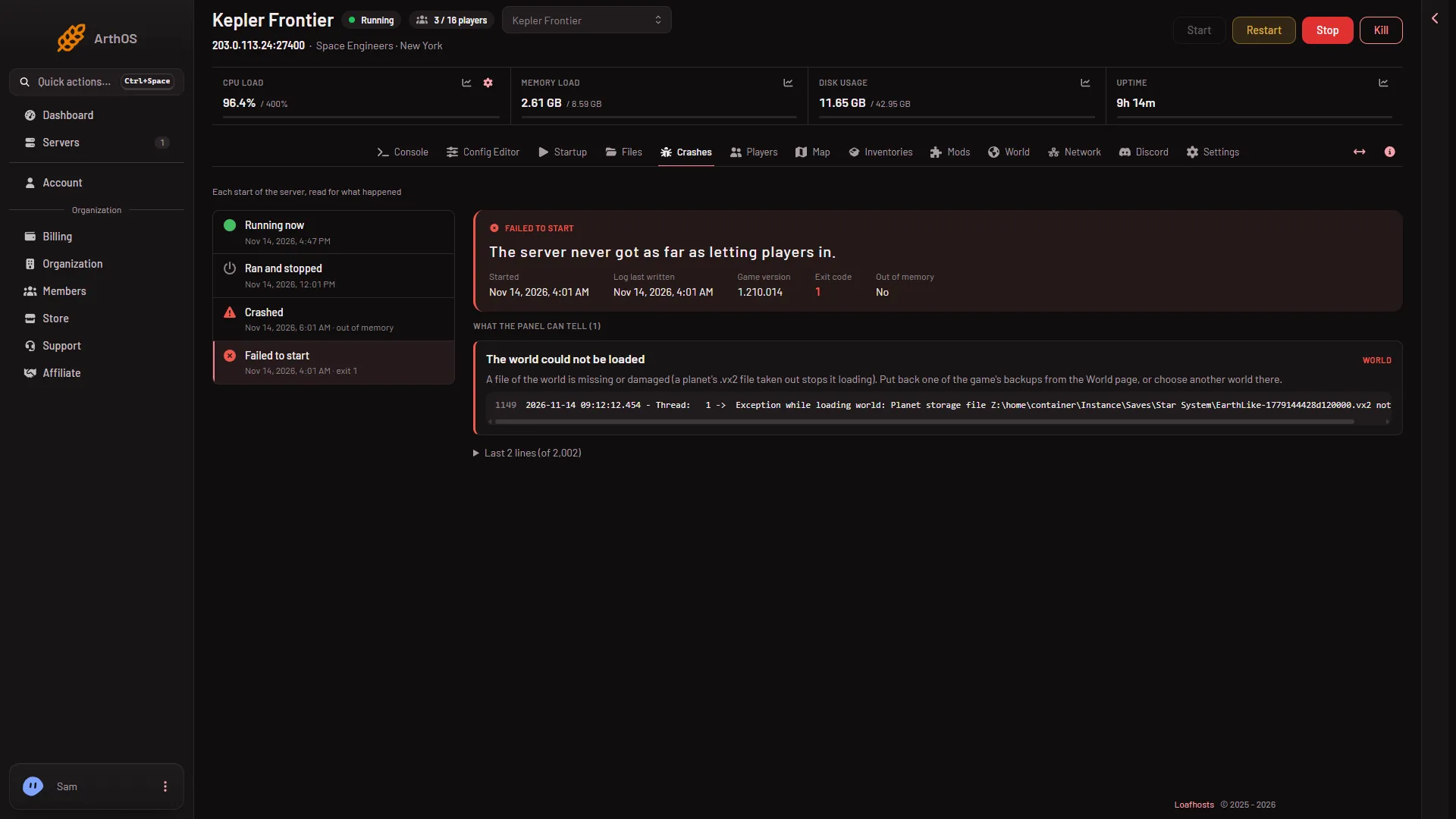
- The finding
Planet and asteroid files in a world end in .vx2. A missing one stops the load. The game does not make a new world in its place.
2. Put back a backup
The game makes a whole copy of the world each time it saves, up to the number you set in Backups kept. Each copy is a whole copy of the world’s folder, so it normally holds the planet files. Not checked with a backup of a world that lost a planet file.
- Open the World page.
- Find the Backups (N) card. It lists the game’s own whole copies of the world, newest first.
- Choose Put back (1) on a backup from before the problem began. How many copies the game keeps is Backups kept (2), set under World settings in the Config Editor.
- Start the server.
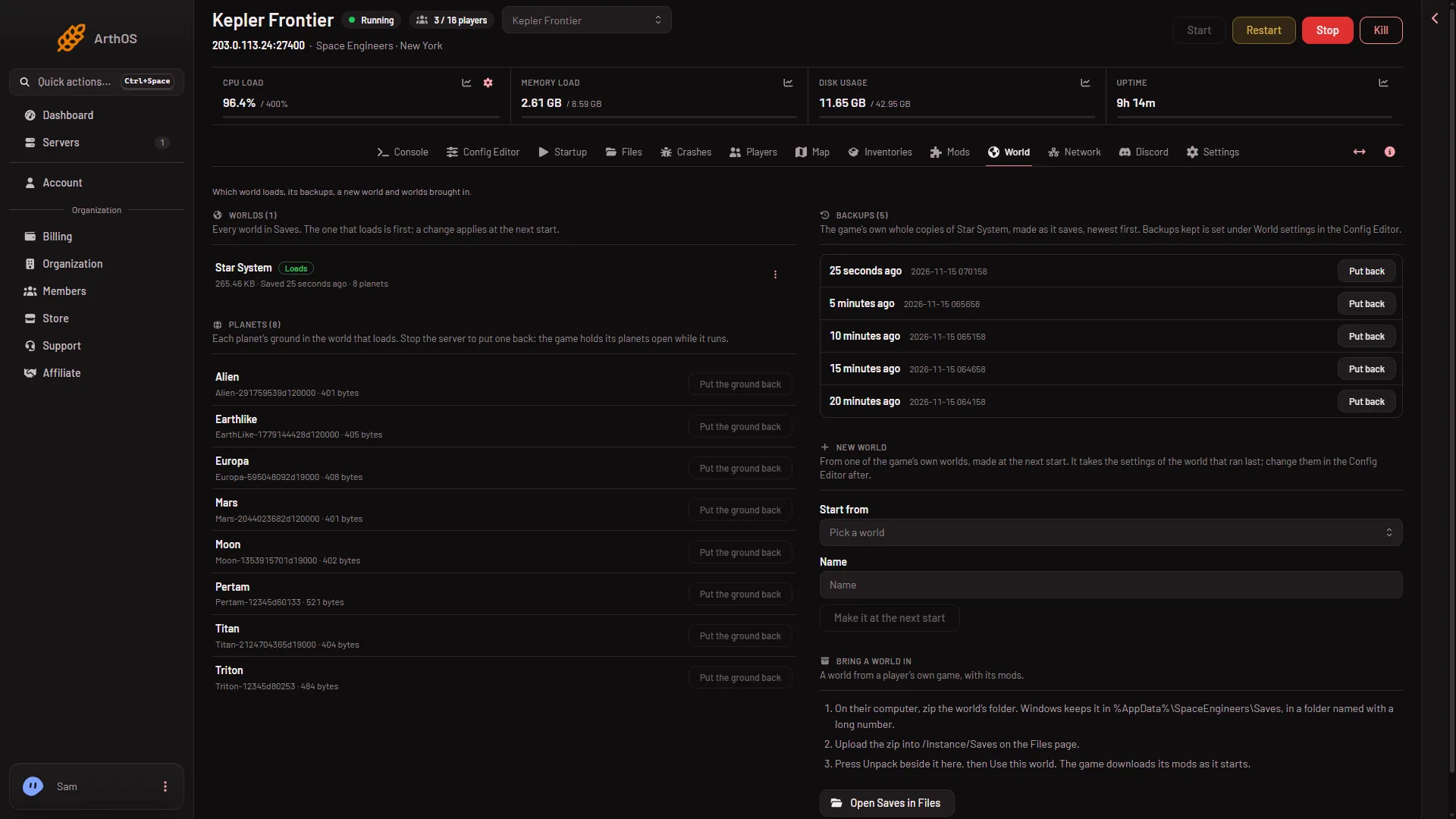
- Put back
- Backups kept
Put back does not overwrite the damaged world. It copies the backup into a new world folder named after the world and the backup time, and makes that new world the one that loads from the next start. The damaged world and the other backups stay. The panel says: “The backup of (time) is copied into a world of its own and loads from the next start.”
If the first backup also fails, go back one more. Backups older than the Backups kept number are gone, so an old problem may have rotated out every good copy.
3. Or choose another world
If no backup works, or you do not mind starting another world:
- On the World page, open the Worlds (N) card.
- Choose Use this world on the row of a world that does not load now. The change applies at the next start.
- Or use the New world card to make a fresh one from one of the game’s own worlds.
A new world starts from the game’s world you pick (Star System by default). The damaged world stays on the server until you delete it from its three-dots menu.
4. Check it started
After the start, open Crashes. The newest start should read Running now. The Console shows Game ready when players can join.
Panel backups are different
Settings, then Backups, holds the panel’s own backups. They are copies of the server’s files, made when you ask or by a schedule. A restore from there stops the server and overwrites files. Use the World page first, because Put back changes nothing else.
If it does not work
- It fails the same way after Put back. The backup lacks the file too, or its copy is damaged. Try an older backup, or choose another world.
- There is no Backups card. It shows only for the world that loads. If no world is chosen, pick one on the Worlds card first.
- The button is missing. Put back needs permission to create files and to change the startup. Ask the owner.
- A different message on the Crashes tab. If the game made a new world instead, see the Crashes tab.
More about the game: Space Engineers servers.