
















To load another world, open the World page, find the world under Worlds, press Use this world on its row, then restart the server. The server loads that world at its next start. Each world keeps its own mods and its own settings.
Only one world loads at a time. The one that loads is first in the list and has a Loads tag.
Switch the world
- Open the World page.
- In Worlds, find the world you want. A world that is not loading has a Use this world button on its row.
- Press Use this world (1).
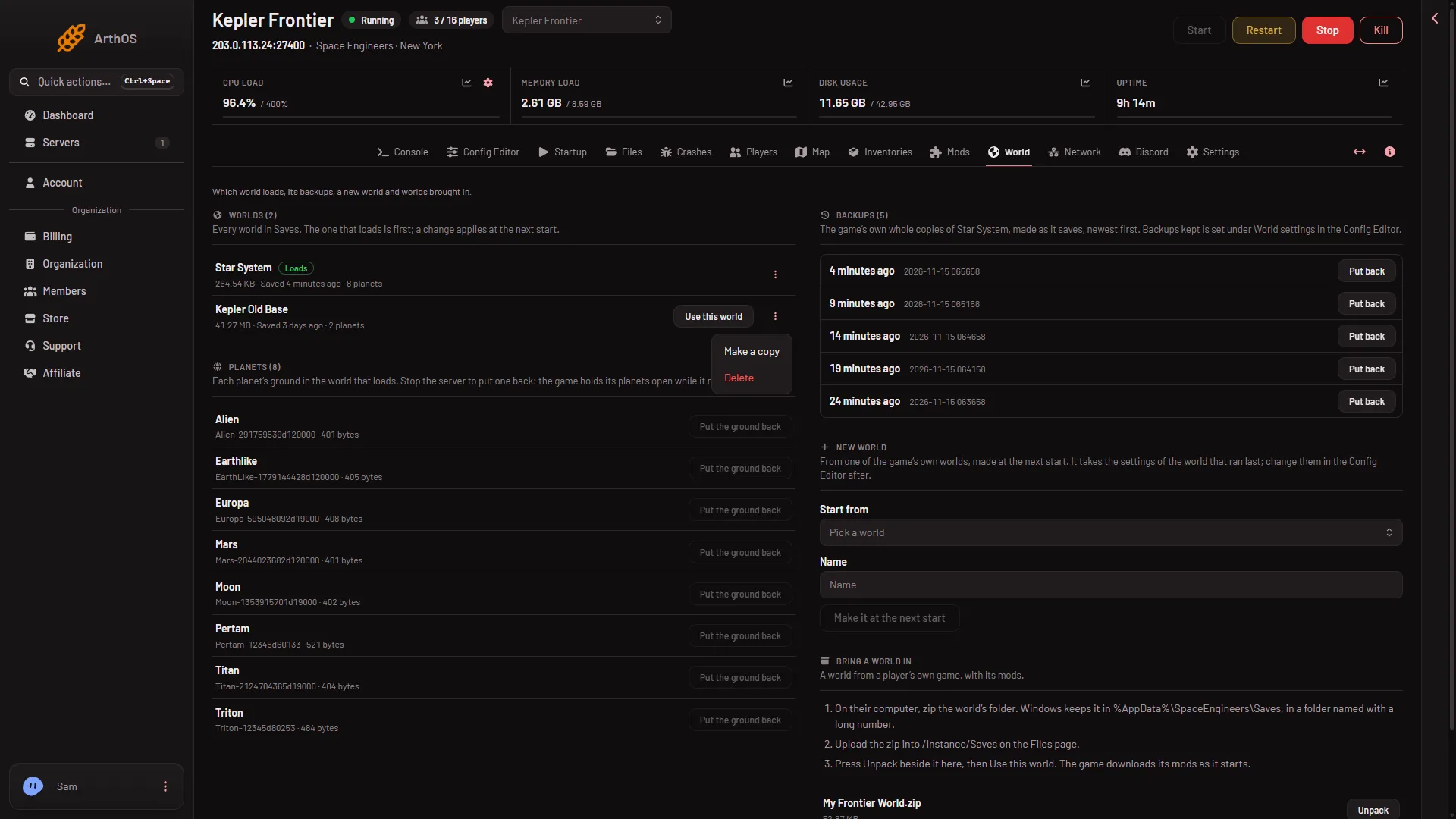
- Use this world
- Make a copy
- Delete
The panel answers that the world “loads from the next start”. Nothing stops or restarts. The change takes effect only when the server starts again.
Restart to load it
Restart the server from the top of the page, or stop and start it. Players on the server are disconnected, so warn them first. A stop from the panel saves the world that is running, so you do not lose its work.
When the server is up, the new world has the Loads tag.
What changes with the world
- Mods. The mod list belongs to the world. The Mods page shows the list of the world that loads, and the game downloads those mods as the server starts. See mods per world.
- Settings. The World settings in the Config Editor are the file of the world that loads. After a switch they show the other world’s values. They can be saved only while the server is stopped. The tab shows at once after Use this world, without checking that the world’s folder is there. A new server shows only Passwords and Server settings until it has started twice, so start it again before you look for the tab.
- Players and ships. They are part of each world. You see the other world’s, not the old one’s.
- The old world. It stays on the server, with its backups. Press Use this world on its row to go back.
If it does not work
- There is no Use this world button on the row. That world is the one that loads already.
- The panel says the world is not on the server. The folder has no
Sandbox.sbc, so it is not a world. Open Files,Instance/Saves, and check the folder. See upload your own world. - The page says the world that loads is not on the server. Its folder was renamed or moved. At the next start the game makes a new world of that name. Choose a world from the list with Use this world before you restart. A world that cannot load reads Crashed or Failed to start on Crashes: read the finding.
- Your world is missing from the list. The page reads the first 40 folders in
Saves. Delete worlds nobody plays, or check the folder name. - You do not see Use this world at all. Your role must be allowed to change the startup.
To keep the old world safe before you try things, use Make a copy in its three-dots menu. The three-dots menu also has Delete, which moves a world that is not loading to the trash, where it can be restored for 3 days.
More about the game: Space Engineers servers.