
















Add the mods to the list on the Mods page, then choose Apply. The panel downloads them, and the server loads them when it starts. Apply and restart does the restart for you. The server must run tModLoader. If the page shows Mods need tModLoader, switch the software on the World page first.
Steps
- Open the Mods page.
- Add a mod. Search on the Workshop tab and choose Add, or paste a link in Add by link or ID and choose Look up. See search the Workshop and add by link or ID.
- Look at the bar at the bottom of the page. It shows what is waiting, for example “1 to add” and how much will download. Nothing has happened to the server yet.
- Choose Apply (or Apply and restart (2) on a server that is running).
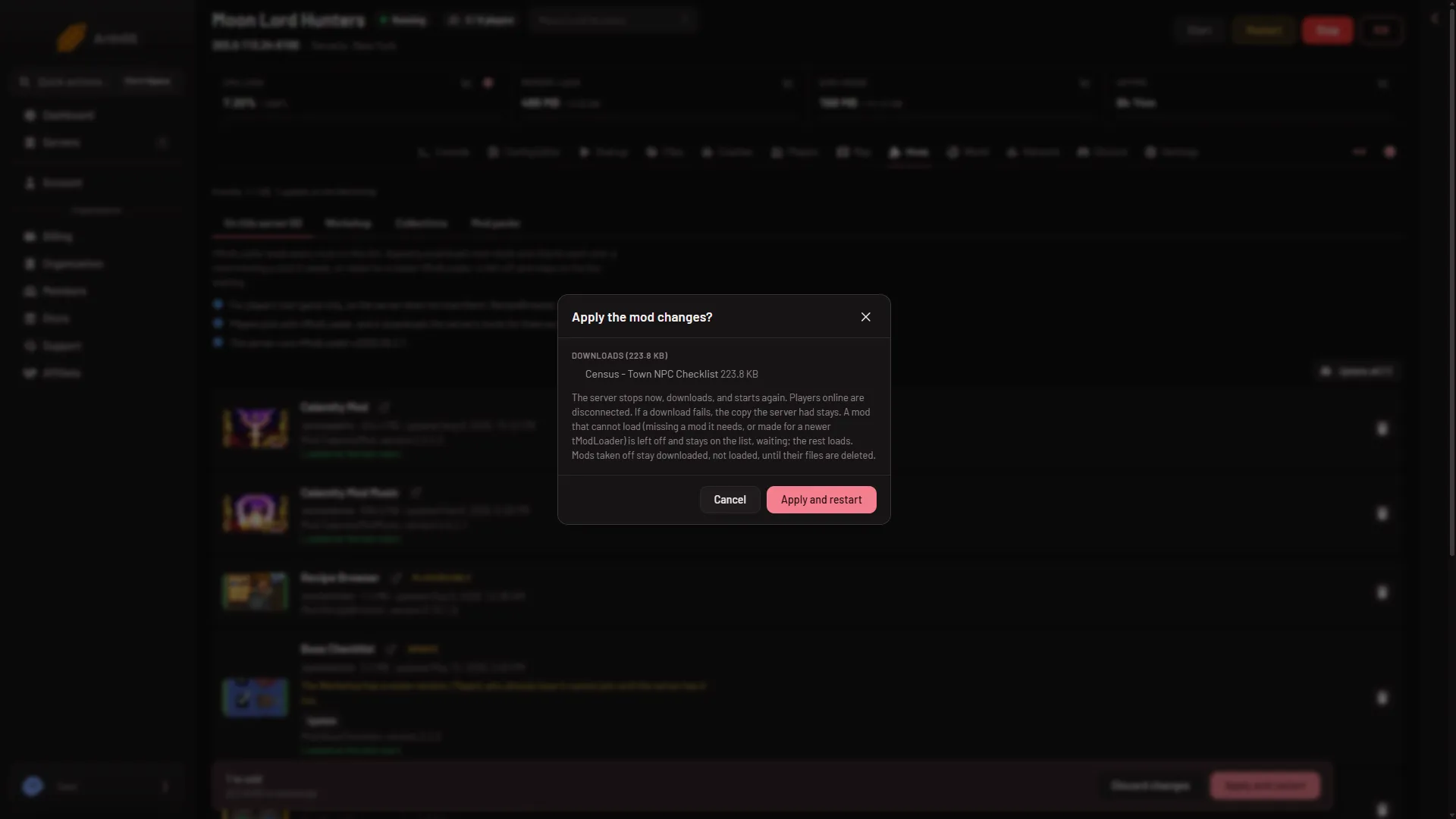
- Read the box Apply the mod changes? and confirm.
Apply and restart stops the server and disconnects everyone who is on it. Warn them first with Message everyone on the Players page.
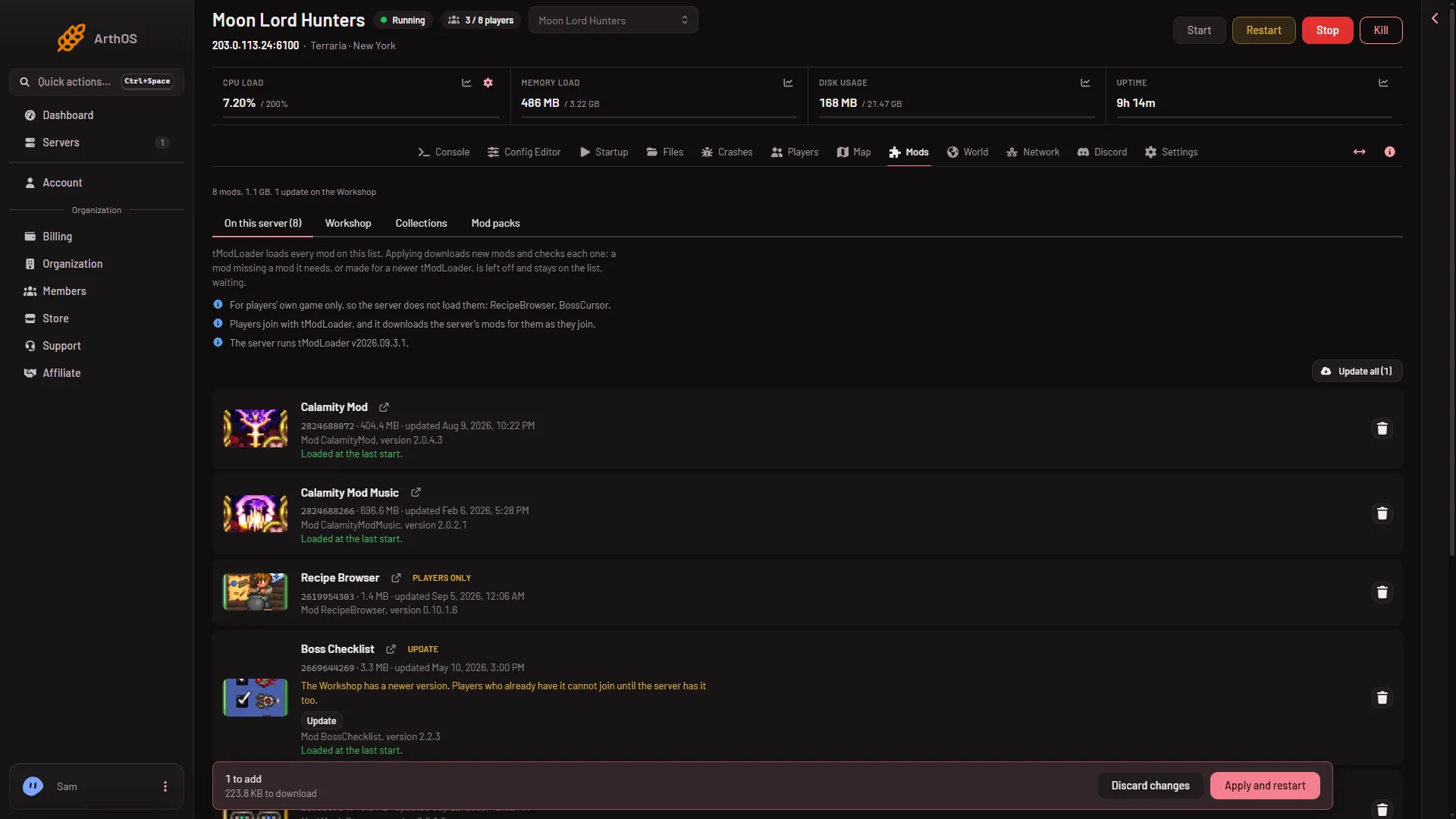
- Discard changes
- Choose Apply and restart
The page says “Applying. Progress shows at the top of the page.” Wait for it to finish.
What the box tells you
- Downloads lists each mod and the size.
- Takes off the list appears if you removed mods.
- Left off when you apply lists mods that cannot load. A mod cannot load when it needs a mod that is not on the list, or when it was made for a newer tModLoader than the server runs. It stays on the list, waiting. The rest loads.
On a running server the box says: the server stops now, downloads, and starts again. Players online are disconnected. If a download fails, the copy the server had stays.
On an offline server the box says it downloads now and stays offline. Start the server when you are ready. The mods load at that start.
What download means
The panel downloads from the tModLoader Workshop (Steam app 1281930). That is a different Workshop from the one for Terraria itself. A Workshop item can hold one file for each tModLoader version. The server takes the newest build made for its Terraria version that is not made for a newer tModLoader than the server runs.
Players need the same mods. They join with tModLoader, which downloads the server’s mods for them as they join.
Changed your mind
Choose Discard changes (1) on the bar. The list goes back to what it was. Choose Take (mod) off the list on a row to remove one mod. A mod taken off stays downloaded but is not loaded, until you delete its files under On the server, not loaded.
If it does not work
- Apply needs permission. The bar says: “Applying needs permission to change the startup and to restart the server.” Ask the owner for a role that allows both.
- A mod could not be downloaded. The page says which one and why, and that it was left off. It is still on the list. Apply again later.
- A mod is on the list but does not load. Open its row. It says what it needs. Use Add (name) if it names a missing mod. See a mod did not load.
- The world will not open. tModLoader runs Terraria 1.4.4. A world saved by 1.4.5 does not open on it. The World page marks such a world Too new for tModLoader. Choose a world that is not marked, or make one under New world, then restart. See a 1.4.5 world will not open.
More about the game: Terraria servers.
Sources: store.steampowered.com: TModLoader