









A custom map is a Workshop mod that adds map files. Add it on the Mods page like any other mod. The panel reads which maps are inside it and writes the Map= line for you, with the game’s own map, Muldraugh, KY, last.
For example, a Workshop search for Raven Creek lists an item called “Raven Creek B42”. Build 41 maps do not load on Build 42, so pick an item made for Build 42. See Build 42 mods.
Adding a map does not change where new players start. See starting items and spawn point.
Make a backup first if the server already has a world. PZwiki advises a backup before you add mods to an old save. See backups and saves.
In the ArthOS panel
- Open the Mods page and the Workshop tab.
- Search for the map, or paste its Workshop link or ID into Add by link or ID and choose Look up.
- Choose Add on the map’s card. For a link or ID, a box titled “Add these mods?” lists what the map needs. Choose Add and the number, for example “Add 2”.
- The mod is on the list now, but nothing has changed on the server yet. A bar at the bottom shows what is waiting, with lines such as “1 to add” and “122.1 MB to download”, and the buttons Discard changes and Apply and restart. The mod is downloaded when you apply.
- Look at the map’s row on On this server. It says “Adds the maps:” and names them (box 2). If the Workshop item holds several mods, a line “Mods in this item that load:” lets you choose which ones.
- Above the list, the line “Maps, in load order:” shows the order the panel will write (box 1). A mod’s map comes before
Muldraugh, KY. - While the server runs, choose Apply and restart, then confirm in the box “Apply the mod changes?” with the button of the same name. The server stops, downloads the mod and starts again. Players online are disconnected. When the server is stopped, the button reads Apply instead: it downloads the mod and the new list is used at the next start.
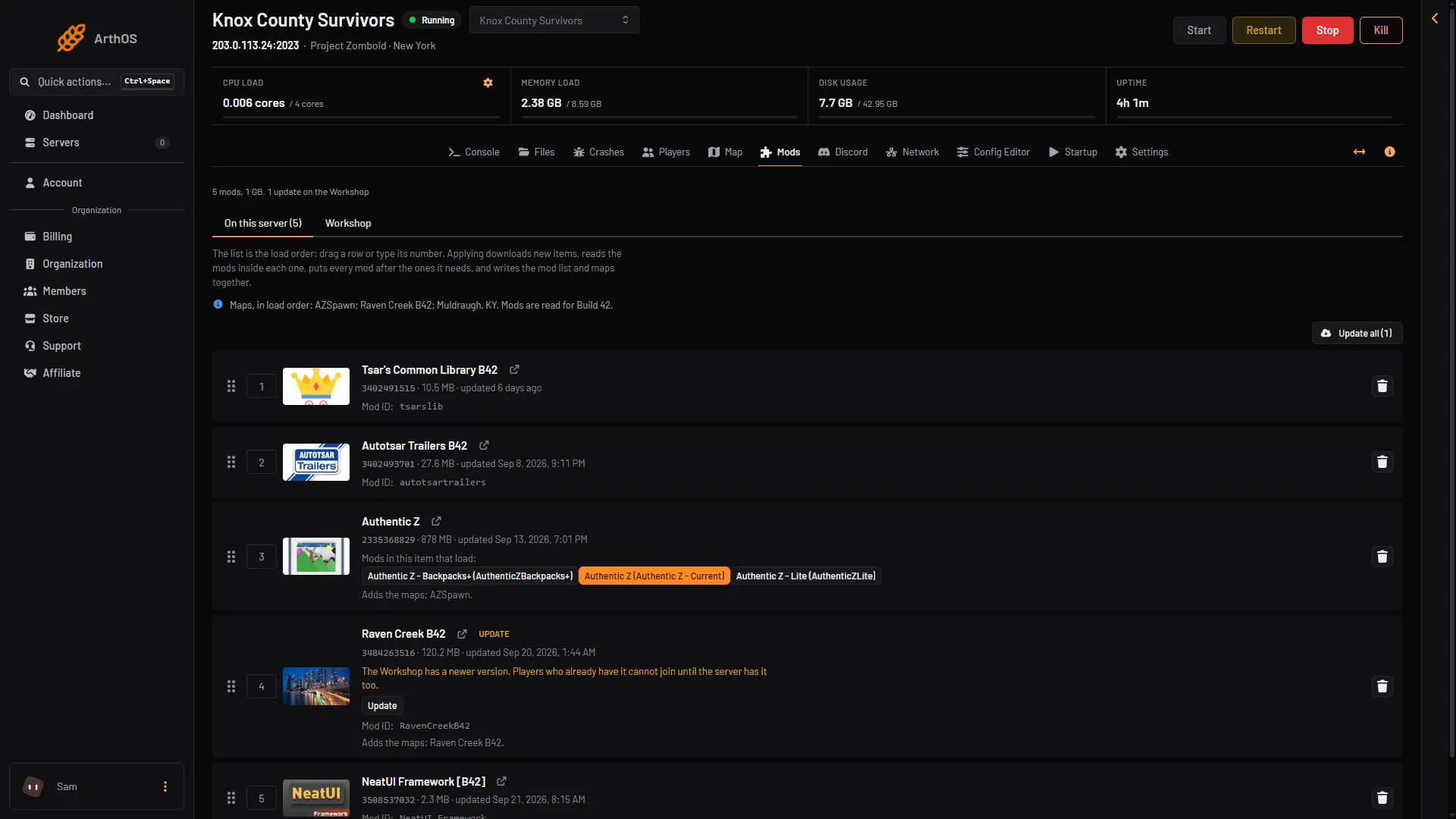
- Maps in load order
- Adds the maps
A map that has a newer version on the Workshop shows an UPDATE tag in the picture. See update mods.
The Map page draws from the server’s map files. How a map mod from the Mods page is drawn: not checked on Build 42.21 as of 18 October 2026.
If a mod on the list needs one that is missing, or two mods cannot load together, nothing changes and the server starts as it was.
The Config Editor shows Maps, Mods and Workshop items, but you cannot change them there. They say “Written by the Mods page, which keeps the mod list, the Workshop items and the maps in step.” Choose Open Mods to go there.
By hand
Three lines in the server’s ini file (.cache/Server/<Server Name>.ini in Files) hold the list:
WorkshopItems=<Workshop ID>
Mods=<mod ID>
Map=<map folder>;Muldraugh, KYWorkshopItemstakes Workshop IDs, separated by semicolons.Modstakes mod IDs. One Workshop item can hold several mods. See Workshop ID and mod ID.Maptakes the names of the map folders inside the mod, inmedia/maps. In a Build 42 mod that folder is under42orcommon. List the mod’s map first andMuldraugh, KYlast. PZwiki says the order matters where two maps cover the same ground.
Changes to the ini apply at the next start. On the Mods page the panel writes these three lines together, so use one place or the other.
If it does not work
- The map’s row says it cannot load. The item has no version for this server’s Build. Pick a Build 42 map.
- The server will not start after you added the map. Open Crashes and read the newest start. See mod errors.
- The map is on the list but players do not see it. Check that you applied the change and the server was restarted afterwards.
More about the game: Project Zomboid servers.
Sources: pzwiki.net: Server settings, pzwiki.net: Mods, pzwiki.net: Mod structure, pzwiki.net: Resolving problems with mods