









Every wipe deletes the map. The What is wiped group on the Wipes tab decides what else goes with it: what players learned (blueprints), clans and contacts, and the data files of your plugins. A plan built with no starter resets nothing extra. A plan you start from Monthly, Every two weeks or Every week begins with Blueprints on At forced wipes. Check it before you save.
These settings only work while the plan is on. Check the switch at the right of the band at the top of the Wipes tab. If you turn it on, choose Turn on wipes when the panel asks. Saving needs a role that can change startup settings and delete files.
Choose what is wiped
- Open the Wipes tab and find the group What is wiped.
- Under Blueprints, choose Never, At forced wipes or Every wipe.
- Under Clans and contacts, choose Keep them, Reset with blueprints or Reset every wipe.
- Under Plugin data, choose the button Choose files and tick the files a wipe should delete. Choose Use these.
- Choose Save in the bar at the bottom. Nothing is stored until you do. Discard drops your changes.
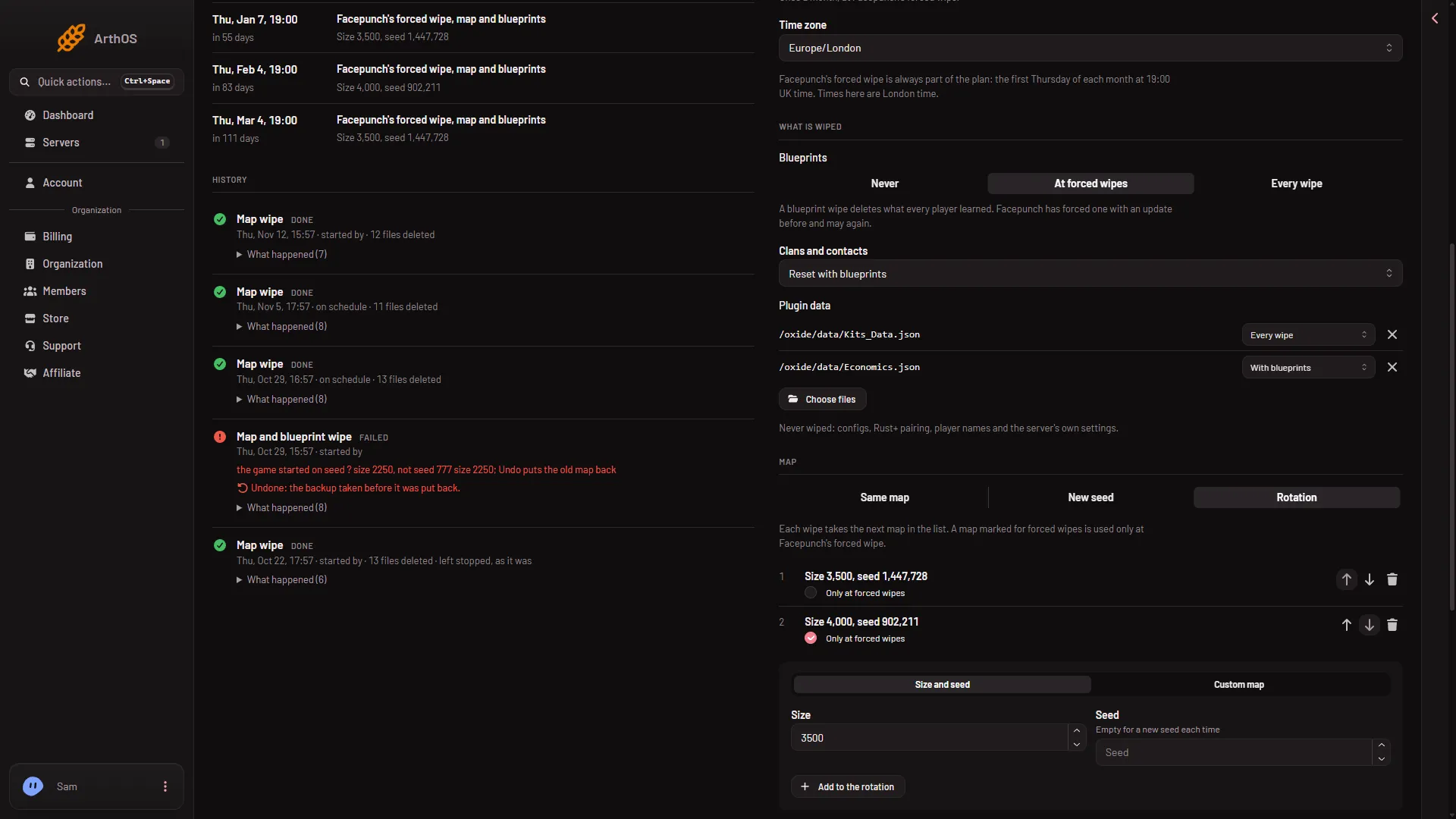
- Blueprints
- Clans and contacts
- Plugin data
- Choose files
Blueprints
A blueprint wipe deletes what every player learned. The panel’s blueprint wipe is always a map and blueprint wipe. There is no wipe of blueprints alone.
- Never: wipes take the map only. Players keep what they learned.
- At forced wipes: only Facepunch’s monthly forced wipe also takes blueprints. See forced wipe day.
- Every wipe: every wipe, yours and the forced one, takes blueprints too.
Facepunch has forced a blueprint wipe with an update before and may again. Read the update post before wipe day.
Blueprints cannot be restored once deleted. Turn on Take a backup before each wipe (see make the forced wipe wait). Roll back on the wipe’s banner puts the backup back.
Clans and contacts
- Keep them: clans and contacts stay.
- Reset with blueprints: they go on a wipe that also takes blueprints.
- Reset every wipe: they go at every wipe.
Plugin data
Some plugins keep bases, zones or purchases in their data files. The panel does not know which files a plugin needs reset, so you choose them. Read the plugin’s own page for what to reset.
- Choose the button Choose files. The window lists the data folder of your plugin framework, two levels deep, with sizes.
- Use Filter to find a plugin’s file.
- Tick the files to reset. You can choose up to 60.
- Choose Use these.
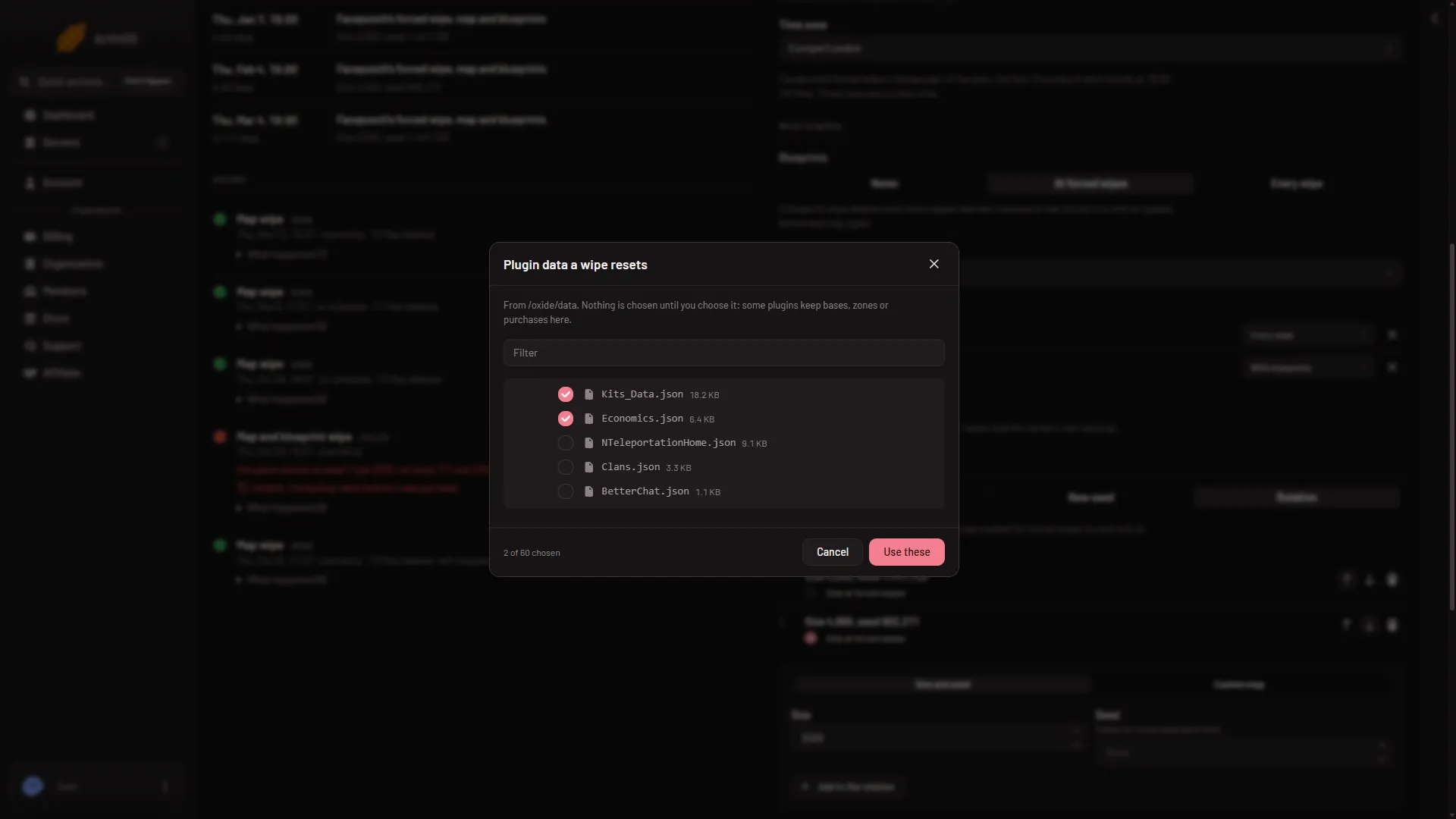
- Filter
- A plugin data file
Each chosen file has a list beside it. Every wipe deletes it at every wipe. With blueprints deletes it only at a wipe that also takes blueprints. The X button beside it stops resetting that file.
At the wipe, each chosen file that exists is deleted. A folder goes whole. A file that does not exist is skipped, and the History row counts how many of the chosen files it reset.
What a wipe never touches
The panel says it under the group: configs, Rust+ pairing, player names and the server’s own settings are never wiped.
What a wipe also deletes
At every wipe these go: the map files, the saves and their older copies, the navigation and occlusion caches, sign and photo images, and the death and state records of players. Custom map files go too and download again at the next start. A wipe made by the panel does not go to the Trash, so these files are deleted for good.
Wipe now has its own switch for blueprints, Map or Map and blueprints, in its window. Clans and plugin data follow the saved plan. See wipe now.
If it does not work
- Plugin data says there is no plugin data to reset. The server runs no plugin framework. Install Oxide or Carbon on the Plugins tab first.
- “a file rule limits your role on the plugin data folder”. A file rule on that folder stops your role from choosing files. Ask the owner.
- You cannot save the plan. Saving needs your role to change startup settings and delete files. A role that can only see the plan gets a text summary instead.
- “choose at most 60 plugin data files”. Remove some.
- A file came back. Check that it was ticked and that you saved. Then read the wipe’s row in History.
More about running Rust on the Rust page.