
















You bring a world from your own game in four moves. Zip the world’s folder on your computer, upload the zip into /Instance/Saves on the Files page, press Unpack on the World page, then press Use this world. The world’s mods and settings come with it. The game downloads the mods when the server starts.
This works for a world you built alone, or one you played with friends on a hosted game. It does not replace your old world: that one stays on the server, it just stops loading.
Before you start
- Save the world in your game and go back to the main menu, so the files are complete.
- Know where the world is. On Windows the game keeps worlds in
%AppData%\SpaceEngineers\Saves. Inside it is a folder named with a long number, and inside that is one folder for each of your worlds. Keen Software House, the game’s makers, say on their dedicated server page to copy a world from the game’sAppData\Roaming\SpaceEngineersfolder to the server. If there are several long-number folders, pick the one whose worlds you know. - Pick a short name for the zip. The panel uses the zip’s name as the new world’s folder name. Use letters, digits, spaces and these marks only:
-,_,',(,)and,. Keep it to 60 characters.
1. Zip the world’s folder
- Press the Windows key plus R, type
%AppData%\SpaceEngineers\Savesand press Enter. - Open the folder with the long number.
- Find the folder of the world you want. It holds a file called
Sandbox.sbc. - Right-click that folder, choose Send to, then Compressed (zipped) folder. Rename the zip to the name you want, for example
My Frontier World.zip.
The panel also unpacks .7z, .tar.gz, .tgz and .tar files. A zip is the simplest on Windows.
2. Upload the zip
- Open the Files page of your server.
- Go to
/Instance/Saves. On the World page you can press Open Saves in Files to land there. - Open the New menu, choose File from Upload, and pick your zip.
A big world takes a while to upload. Wait for the upload to finish before you leave the page. An upload size limit was not checked as of 15 November 2026. For a very big world, Connect, then via SFTP on Files is another way in.
3. Unpack it on the World page
- Open the World page.
- Find Bring a world in (1). Your zip is listed there with its size.
- Press Unpack (2) beside it.
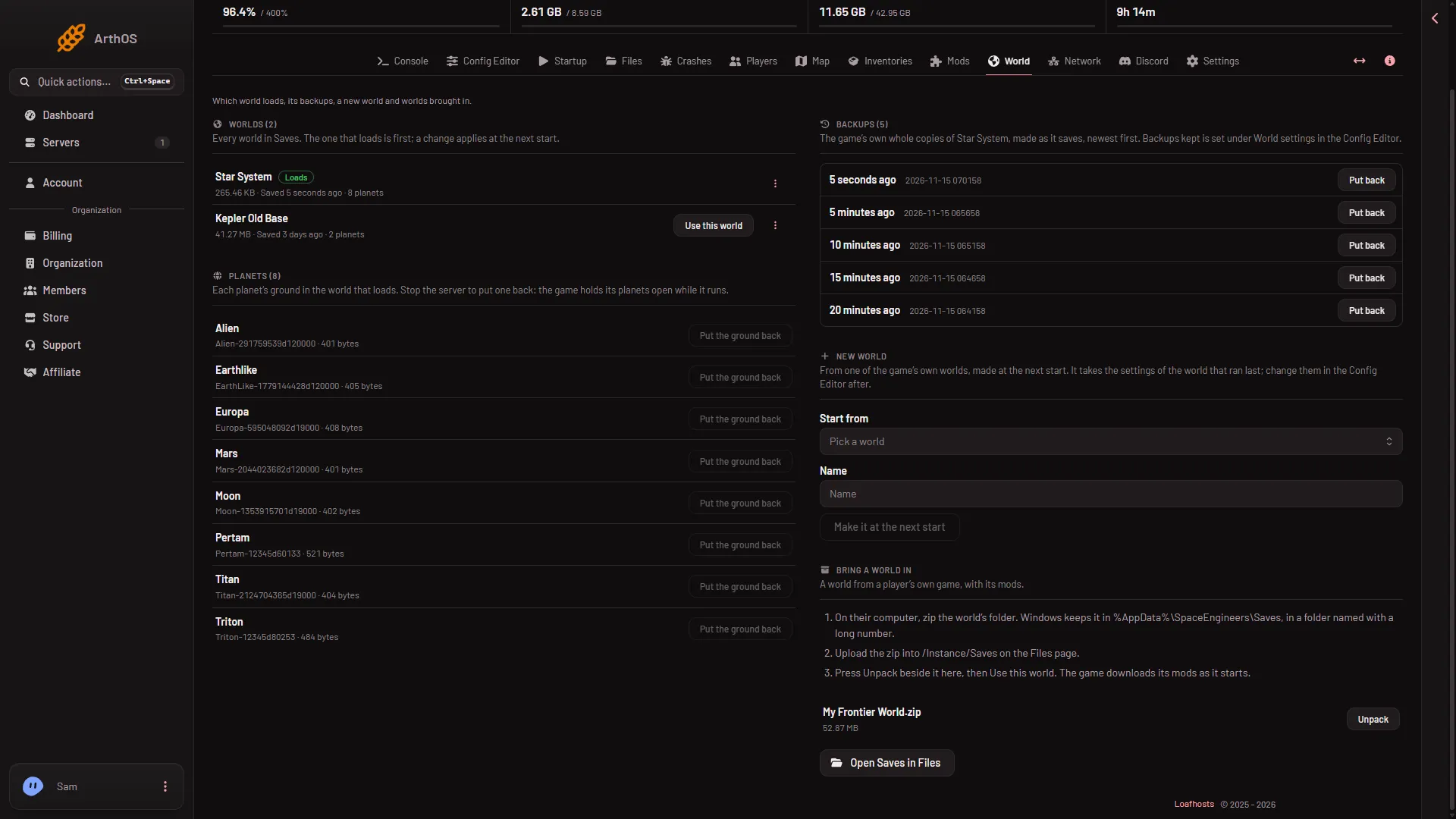
- Bring a world in
- Unpack
- Open Saves in Files
The panel makes a folder with the zip’s name, unpacks the zip into it, then removes the zip. The world now appears under Worlds as the zip’s name, a slash and your world’s own folder name, for example My Frontier World/Frontier. That is normal. Delete on that row removes the outer folder. Unpacking does not stop or restart the server, and it does not change which world loads.
4. Use this world
- In Worlds, find your new world’s row.
- Press Use this world on its row.
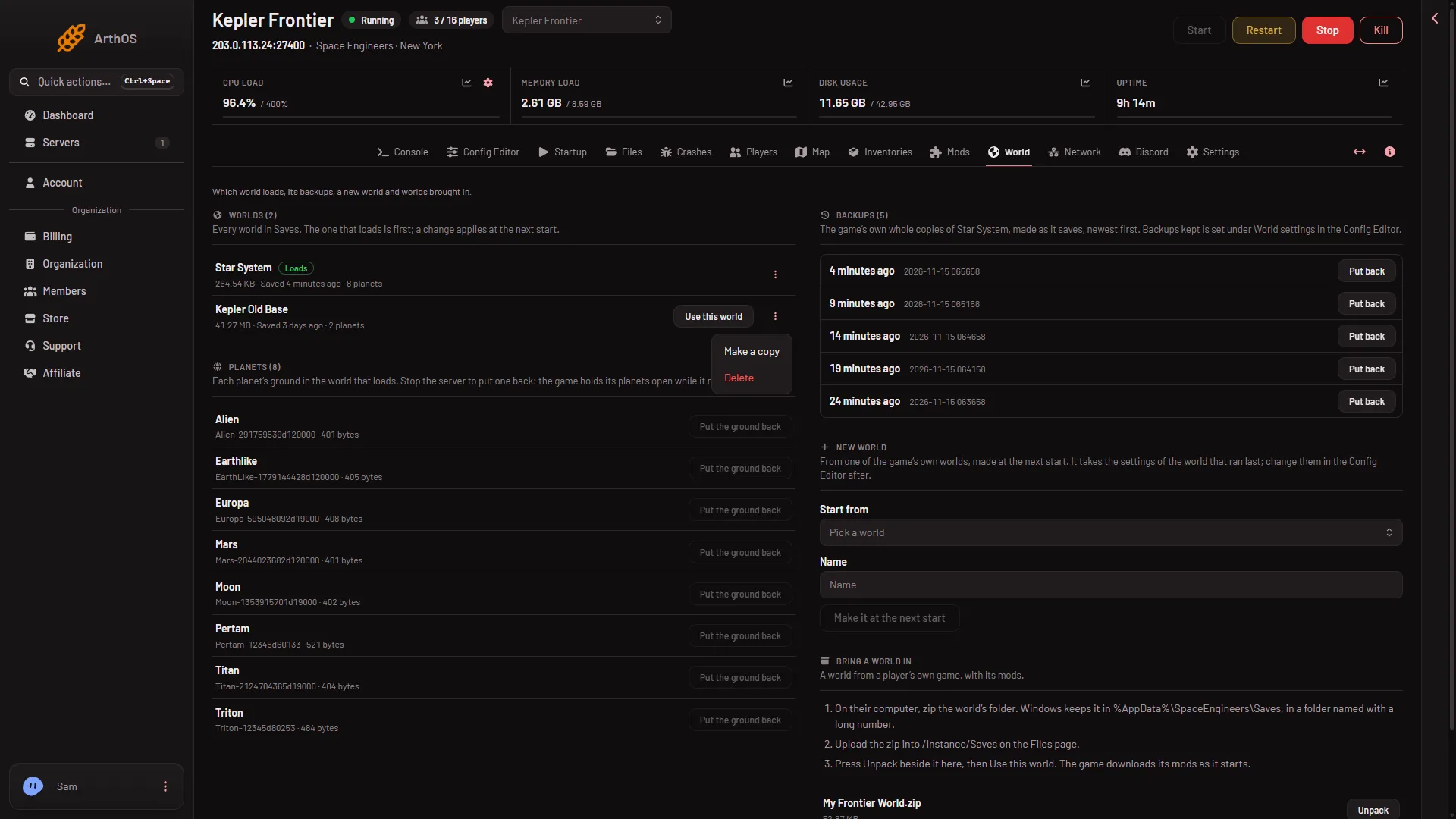
- Use this world
The panel says the world loads from the next start. Nothing restarts. The World settings tab in the Config Editor shows at once. When you are ready, restart the server from the top of the page. Players on the server are disconnected by the restart, so warn them first.
At the start the game loads your world. The row for it then shows the Loads tag.
What comes with the world
- Settings. A world from your own game keeps its own settings. They win when the server loads it. Change them afterwards in the Config Editor, under World settings, with the server stopped. In the game’s files they are in the world’s
Sandbox_config.sbc. - Mods. Each world keeps its own mod list. The game reads yours and downloads every mod as the server starts, with the mods they need. You do not add them again on the Mods page. Only Steam Workshop mods load: a mod you got another way will not.
If it does not work
- Unpack says the server already has that name. A folder with that name exists. Rename the zip and unpack again. Or delete the old folder from the world’s menu on the World page, only if you do not need it: it goes to the server’s trash for 3 days, and the world that loads cannot be deleted.
- Unpack says the zip holds no world. The panel looks for
Sandbox.sbcin the unpacked folder or in one folder inside it. You may have zipped the long-number folder or a folder one level too high. Zip the single world folder instead. The unpacked world’s folder should look like the picture below this list: aBackupfolder, theSandbox.sbcfile,Sandbox_config.sbc, and the planet files. - Your zip is not listed under Bring a world in. Its name has marks the panel does not accept, or it is not a
.zip,.7z,.tar.gz,.tgzor.tar. Rename it with letters, digits and spaces. - The world does not appear after Unpack. The page refreshes by itself every 20 to 30 seconds. Reload it, and check you uploaded into
/Instance/Savesand not another folder. - The server stops while starting, or a mod fails. Open Crashes. A finding there names a mod that could not be downloaded, or a world file that is missing. A planet file taken out of a world stops it loading. It reads Crashed or Failed to start: read the finding. See Mods per world.
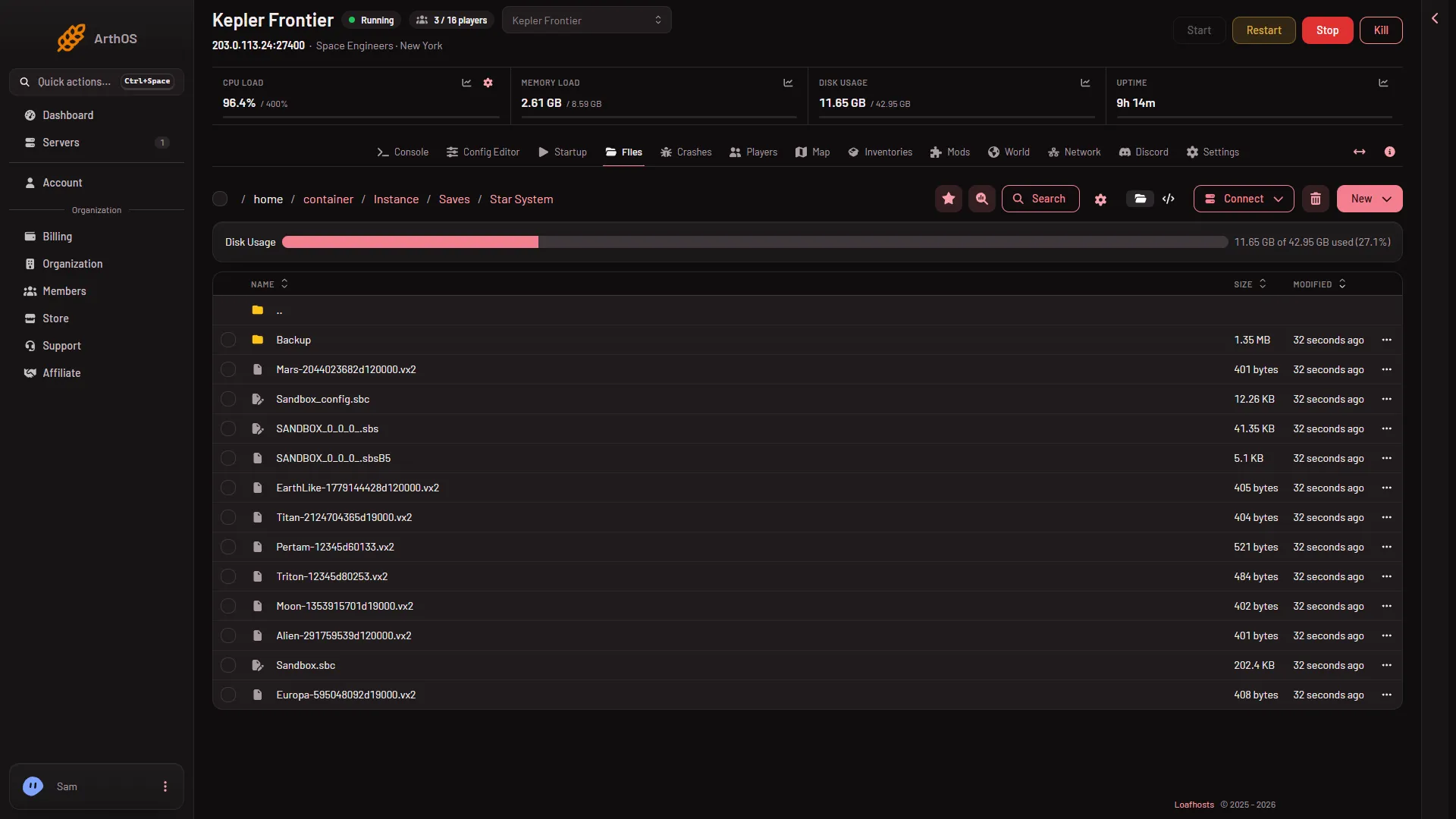
- Backup
- The world settings file
- Sandbox.sbc
More about the game: Space Engineers servers.
Sources: spaceengineersgame.com: Dedicated servers, spaceengineers.wiki.gg: Mods