
















A new Terraria server on Loafhosts is ready to play. It runs the game’s own server, and it makes a world the first time it starts. Start it, copy the address from the Players page, and join with Multiplayer and Join via IP.
What a new server starts with
- It runs Vanilla, the game’s own server.
- It makes a world called
Worldat its first start: Medium size, Classic difficulty, a random seed. - It has no join password. Anyone with the address can join.
- The player limit is the size of your plan: 8, 16 or 32 players for Small, Standard and Large. Change it on the Startup page.
- It gets one port from the panel. The game’s own default port is 7777, but a Loafhosts server does not use it. Use the port the Players page shows.
- Update at start is on by default, so the server runs the newest version of its program at every start. Standby is on by default too: after nobody plays for the time on the Standby card in Settings (10 days when the server is new), the server stops by itself. Check the switch on that card if you do not want that.
- Vanilla has no admins in the game. To kick, ban and set groups in the game, run TShock and follow set up TShock.
Pick the server software
One server runs one of three programs. You choose on the World page.
- Vanilla is the game’s own server. Players join with the normal game.
- TShock is the same game with accounts, groups and anti-cheat. Players join with the normal game.
- tModLoader loads mods from the Steam Workshop. Players join with tModLoader, which is free on Steam.
If you are not sure, compare the three. To keep Vanilla, do nothing here.
To switch to Vanilla or TShock:
- Open the World page.
- In the Server software card, choose the program.
- A box asks “Run (name)?” and tells you what happens. Confirm it.
- Restart the server. A restart disconnects everyone who is on, so warn them first with Message everyone on the Players page.
The new program downloads at its first start. Each program keeps its own files, so switching back and forth loses nothing. There is more in change the server software.
Make or pick a world
A server with no world makes one at its first start, from the size, difficulty and seed on the Startup page. To choose them yourself, use New world on the World page:
- In Name, type a name of up to 27 characters.
- Pick Size: Small, Medium or Large.
- Pick Difficulty: Classic, Expert, Master or Journey.
- Leave Seed empty for a random world, or type one of the game’s special seeds.
- Choose Make this world.
The world is made at the next start, and then the server plays it. A large world takes a minute or two. Other worlds stay, and Play this world on the World page switches between them.
World evil (Corruption or Crimson) is in the form for every program, but only TShock obeys it. On Vanilla and tModLoader the game picks at random.
To play a world from your own computer, see upload a world. In short: stop the server, put the .wld file in the worlds folder in Files, then choose Play this world and start the server.
Start the server
- Start the server from the buttons at the top of the server page.
- Watch the Console. The server is ready when it prints
Type 'help' for a list of commands.
The first start of TShock or tModLoader takes longer, because the program downloads first.
Find the address
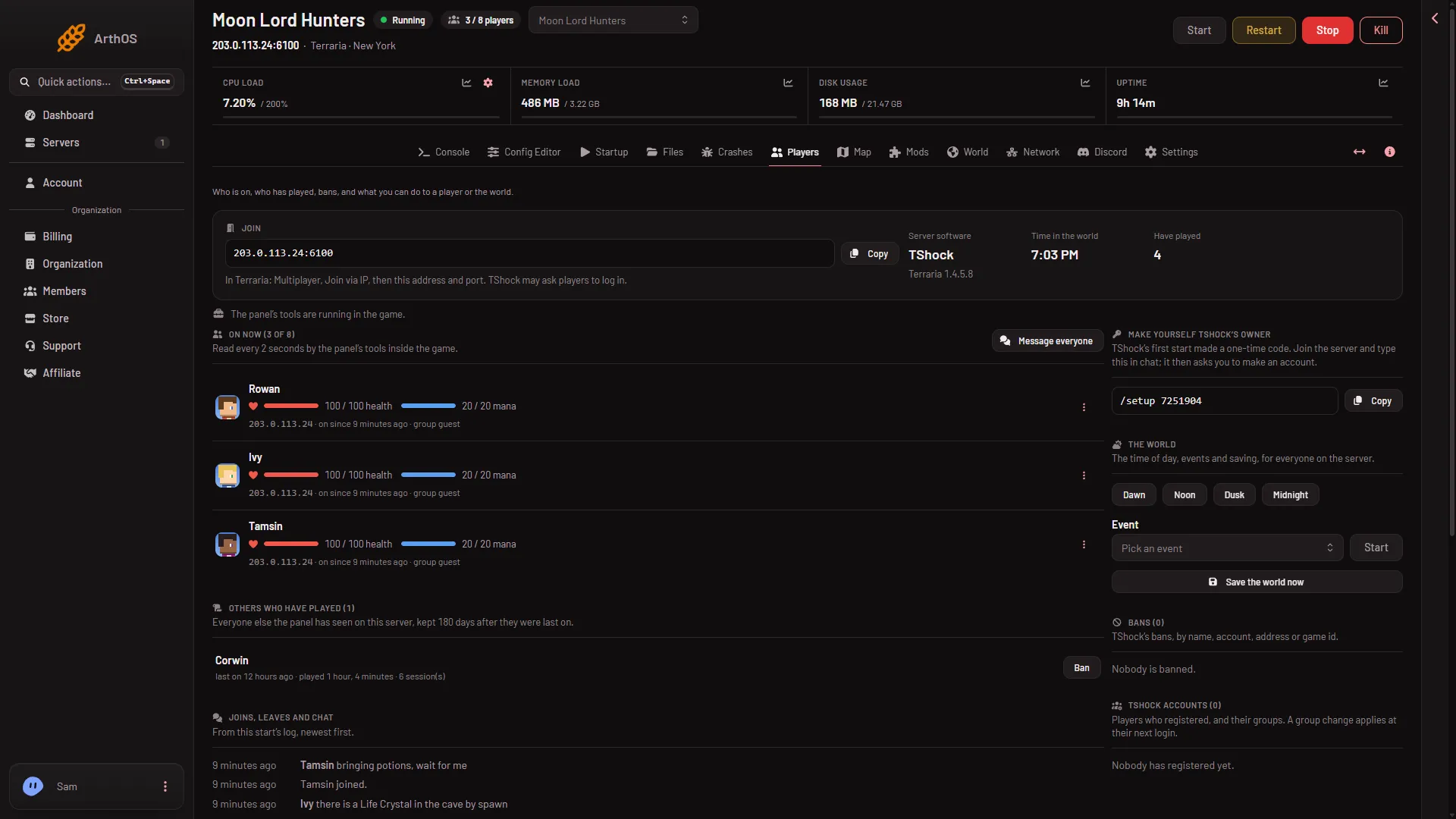
Open the Players page. The Join box shows the address and port as one line. Choose Copy and send it to your friends.
- Copy the address
- How players join
Choose Copy (1). The line under the box (2) tells each player what to do in the game.
If the box says “The server has no address yet.”, there is nothing to copy yet. Look again later.
Join
Each player does this in Terraria:
- Choose Multiplayer on the main menu.
- Pick a character.
- Choose Join via IP.
- Type the address, then the port. For example, address
203.0.113.24and port6100.
On a tModLoader server, players need tModLoader instead of the normal game. It downloads the server’s mods as they join.
Everyone needs the same game version as the server. On Vanilla, the server runs the newest version from the game’s own download list, unless you set Terraria version on the Startup page.
More settings
- Join password. A new server has none. See set a server password.
- Saving. The game saves now and then, and when you stop the server from the panel. The panel’s own backups are under Settings, then Backups, and copy the whole server, worlds included.
- An empty server pauses. While nobody is connected, nothing happens in the world and time does not pass.
- More about the game on Loafhosts: Terraria servers.
If it does not work
- The game says the version does not match. The player’s game and the server must be the same version. Update the game, or set Terraria version on Startup to the player’s version.
- Players cannot find the server. They must type the address and port from the Join box. Port 7777 is wrong here.
- A TShock server refuses players after a game update. TShock needs a version made for the new game version. Wait for a new TShock version, then restart. Update at start on the World page brings it up to date at every start.
- The world is not the one you wanted. Open World and choose Play this world on the right one. It applies at the next start.
- The server will not start. Open the Crashes page. It reads the last starts and names what went wrong.
Sources: terraria.wiki.gg: Server, store.steampowered.com: TModLoader