











A new VEIN server needs about 3 minutes to install and about a minute to start. It then appears in the game’s server browser about 30 seconds later. It starts with a random join password, 16 player slots, and the name you gave it when you ordered. This guide takes you from the order to your first join.
VEIN is an early access survival game by Ramjet Studios. See all the details on the VEIN game page.
What a new server starts with
- Server list name: the name from your order. This is the name players see in the server browser, the list of servers inside the game.
- Join password: a random one. Players need it to join.
- Players: 16.
You can change all three on the Startup page. For the size of machine VEIN needs, see VEIN server requirements.
Start the server and wait
- Open the server and go to Console to watch it.
- A new server first installs the game, which takes about 3 minutes. Wait for the install to end.
- A start takes about a minute. If the server is stopped, choose Start at the top right of the server page.
The server appears in the server browser about 30 seconds after it is ready. A server that is ready but not yet in the list is normal. Wait 30 seconds.
A server that nobody has played on for 10 days stops by itself (Settings, Standby; you can change the time). A stopped server is missing from the server browser. Choose Start to bring it back.
Read the join password
- Open the Startup page.
- Find Join password. This is the password your friends type to join.
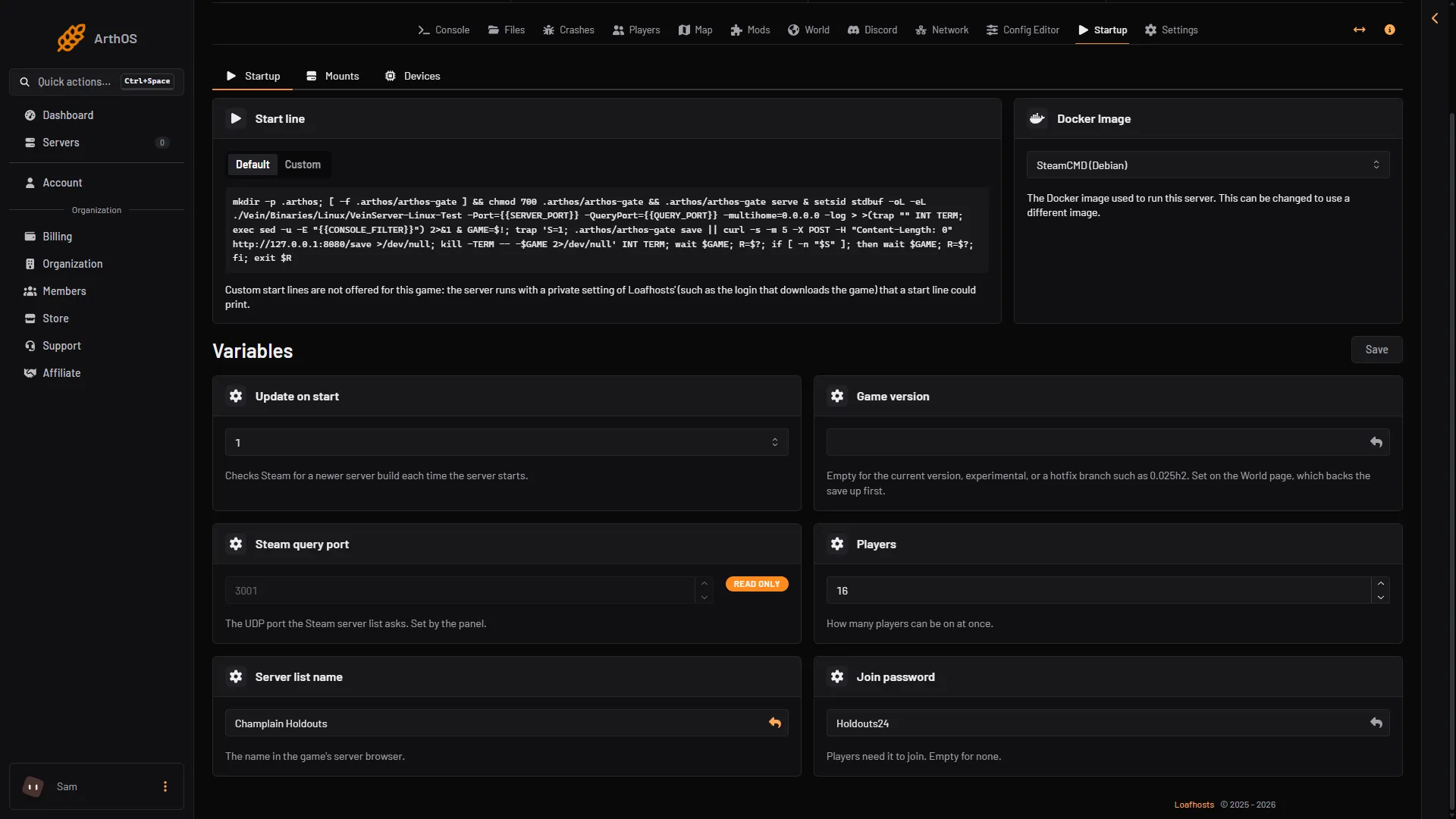
- Server list name
- Join password
To set your own, see set a VEIN server password.
Let your friends join
The Players page has a card called Joining. It shows the server address with a Copy button, and it tells you whether a join password is set.
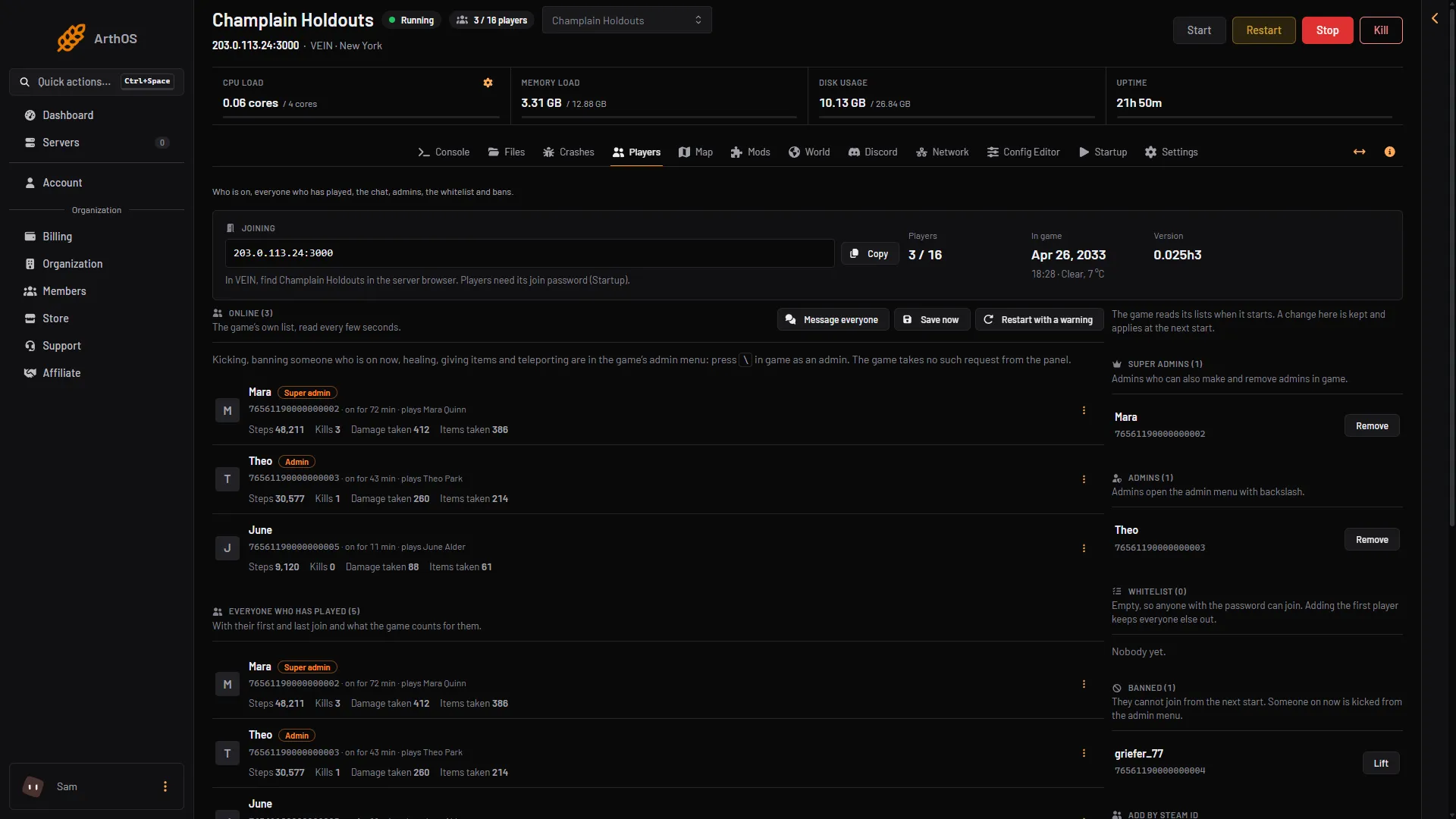
- Copy the address
- How players join
Your friends then:
- Start VEIN. They need the same game version as the server.
- Look for your server name in the server browser.
- Type the join password.
More steps are in connect to a VEIN server. The ports the server uses are in VEIN server ports.
Make yourself super admin
Super admins can use the game’s admin menu and can make other admins. On the Players page, open the menu on your row and choose Make super admin. If you have never joined, use the card Add by Steam id with your SteamID64, the 17-digit number that starts with 7656. The game reads this list when it starts, so the change applies at the next start. See make yourself admin in VEIN.
Saves and backups
The World page shows The save and has Save now. The game keeps one save, Server.vns. The panel saves the world before every stop, restart and backup. Autosave runs every 300 seconds by default.
To play a world you already have, see upload a VEIN single-player world.
For a copy you keep, open Settings, then Backups, then choose Create Backup. The panel saves a running VEIN world before it takes the backup.
If it does not work
- Your server is not in the browser. It appears about 30 seconds after it is ready. Wait, then search by the exact name on the Startup page. Check that the server is running.
- Players cannot join. Check the join password on the Startup page and that everyone has the same game version as the server.
- You changed a setting and nothing happened. Startup settings apply at the next start.