

















For one world, put the world’s folder in Instance/Saves yourself, or upload it as a zip. Import from another host on the Settings tab suits a whole server folder: it copies files over SFTP or FTP into the server’s top folder. Either way, finish on the World page: press Use this world and start the server.
Before you start
- Stop the old server first, if you can. A stopped server has saved its world, so the copy is whole.
- Find the world’s folder on the old host. It is named after the world and holds a file called
Sandbox.sbc. - A world’s own settings and its mod list travel inside its folder. You do not need to copy them separately.
Route 1: copy the world folder yourself
- Open Files and go to
Instance/Saves. - Use the New menu, then File from Upload or Directory from Upload, to put the world’s folder there. For a large world, press Connect, choose via SFTP and copy it with an SFTP program.
- The folder must hold
Sandbox.sbcdirectly inside it. A world with a different layout will not be listed.
Route 2: Import from another host
Import from another host copies the contents of the folder you choose into the server’s top folder. It merges them with what is there. It never places anything under Instance/Saves by itself, so pointing it at one world’s folder spills that world’s files into the top folder. Use it when the folder you copy is a whole server folder.
- Open your server and choose Settings.
- Find the Import from another host card (1) and press Import files.
- In Connection, choose SFTP. Use FTP with TLS only if your old host offers nothing else. The box warns that a host with a self-signed certificate is refused.
- Fill in Host, Port, User name and Password. The password is used for this import only. It is not stored.
- In Folder on the old host, type the folder to copy. Leave it empty for the top folder.
- In Leave out, list what you do not want copied, separated by commas. See below.
- Press Start import.
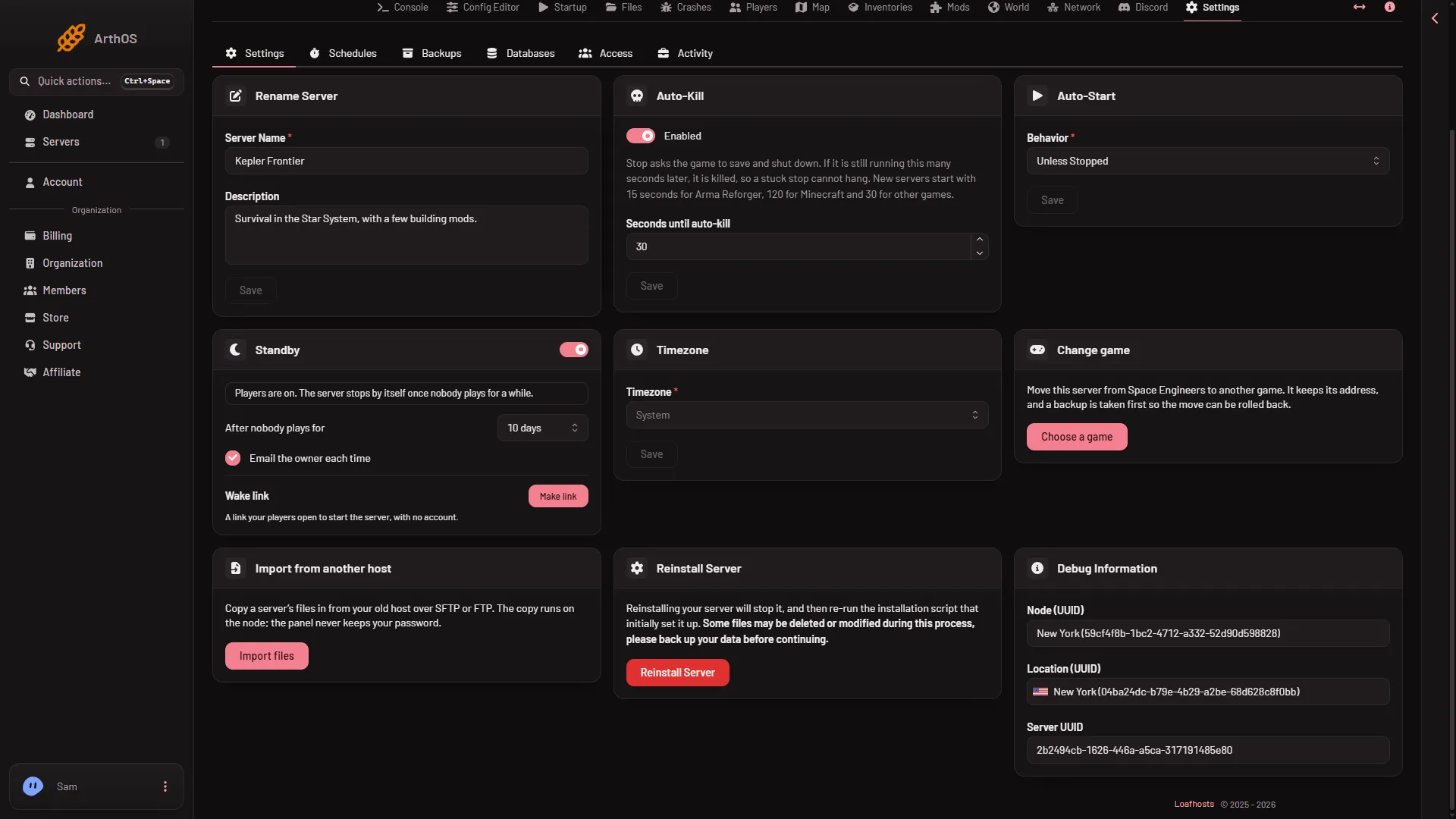
- Import from another host
The box lists what will happen. The server is asked to save and stop. A backup is taken first, so the import can be rolled back. Files are copied in, a file with the same name is replaced, and everything else stays. Large worlds take a while, and progress shows at the top of every page. Addresses on private or local networks are refused.
Leaving the file out means your old admin list does not come with it. Add yourself again on the Players page, see make yourself admin.
When the import ends, open Files and look where the files landed. If a world’s folder, with Sandbox.sbc inside, is not in Instance/Saves, move it there in Files.
Use the world
- Open the World page.
- Find the world under Worlds. A world is listed once its folder holds
Sandbox.sbc. - Press Use this world on its row (1). The panel says the world loads from the next start. It does not stop or restart anything.
- Start or restart the server.
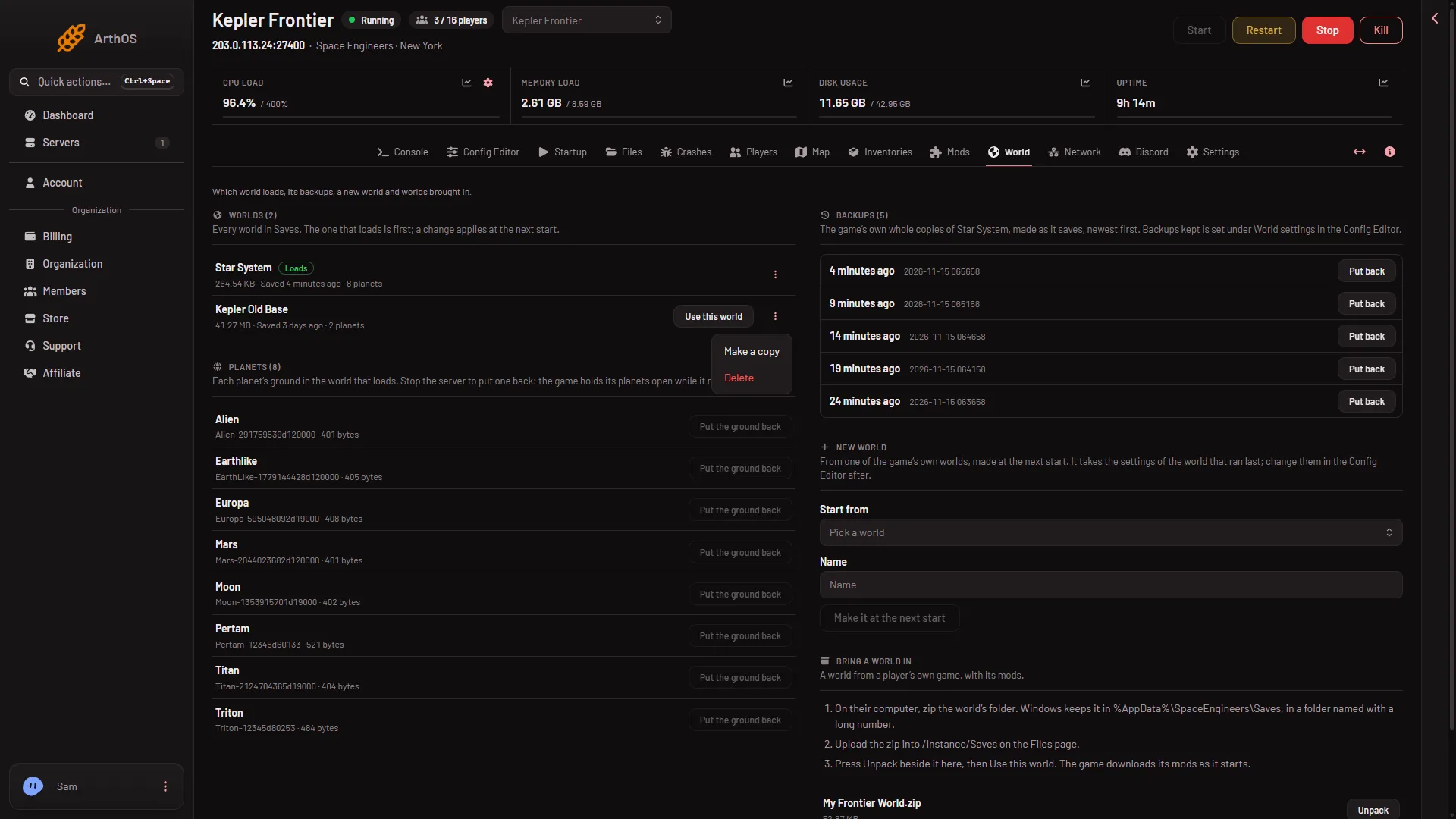
- Use this world
The world keeps its own settings, and its settings win when it loads. The game downloads the world’s mods as the server starts. See add mods if you need to check the list.
If it does not work
- The import button is missing. Your role may not be allowed to import files.
- The import is refused. The host is a private address, or the login failed. Check the host name, port, user name and password.
- The world is not listed. Its folder has no
Sandbox.sbcdirectly inside it, or it is not inInstance/Saves. - The server made a new world. The world that loads was not found at start. Choose the right one on the World page.
- Mods are missing. Give the server a few minutes at the first start. The game downloads them as it starts.
More about the game on Loafhosts: Space Engineers servers.