
















An out of memory crash means the server used all the memory your plan gives it. Either the game says so in its log, or the machine ends the game when it reaches the limit. To fix it, take weight out of the world, turn on trash removal, or use a bigger plan, which has more memory.
See which one happened
Start the server again from the panel. If it runs, go to fix 1. If it crashes again within minutes, leave it stopped and go to fix 2.
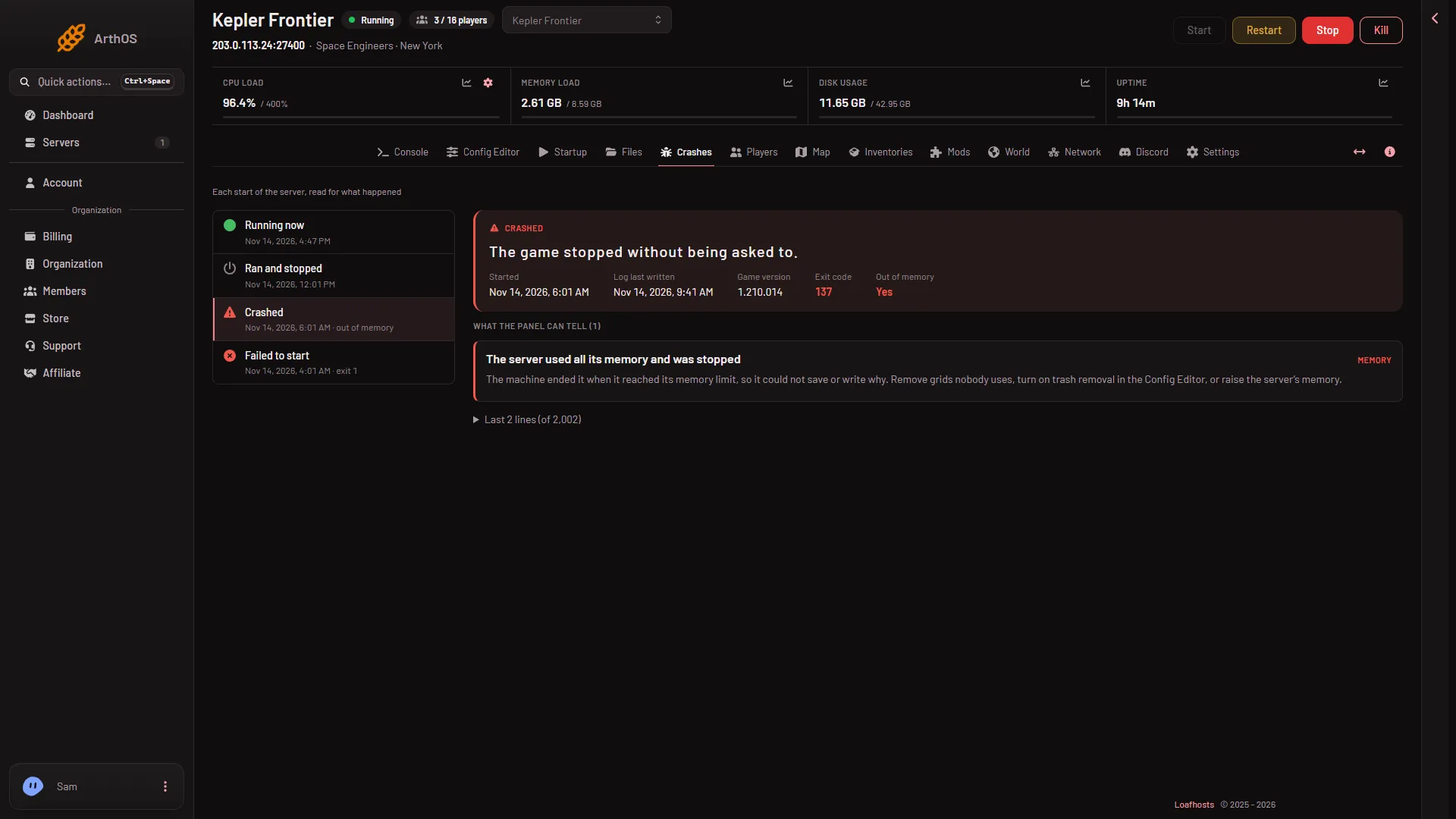
Open the Crashes tab and choose the start marked Crashed. A start that ran out of memory can say “out of memory” beside its time, and its Out of memory fact reads Yes. The panel shows one of two findings under What the panel can tell (N). The picture is made up.
- The finding
- The server ran out of memory. The game wrote an out of memory line in its own log. The panel shows that line.
- The server used all its memory and was stopped. The log has no line about it. The machine ended the game at its memory limit, so the game could not save or write why. The node tells the panel.
Both fixes say the same: remove grids nobody uses, turn on trash removal in the Config Editor, or give the server more memory with a bigger plan.
Because the second kind cannot save, you can lose what happened since the last autosave. The world may also be damaged. If the next start fails, see the world could not be loaded.
What uses memory
The finding’s own text names three things: large grids, many players, and mods with scripts. More of each means more memory.
For a sense of scale, a Loafhosts server with nobody on used about 2.0 to 2.6 GB of memory. That reading came from a server with three mods and the panel tools on. Your world will use more as it grows. The plans give 6 GB (Small), 8 GB (Standard) and 12 GB (Large): see memory requirements.
You can watch the memory load reading at the top of the server page. If it climbs toward its limit and does not come down, the server may be heading for this crash.
1. Remove grids nobody uses
A grid is a ship, station or any connected set of blocks. Old wrecks and abandoned builds still cost memory.
- Open Inventories. Ships and stations lists every grid, biggest first by block count, with its owner.
- Find big grids that nobody owns or uses. You can also open Map and choose the grid’s marker.
- In the grid’s dialog choose Delete, then Delete for good. This needs the panel tools running. The dialog says the grid and everything in it are taken out of the world and that the game’s backups still have it. The panel cannot undo it.
Ask the owner of a grid first. A deleted grid is gone from the world.
2. Turn on trash removal
Trash removal takes away small abandoned grids and floating objects. World settings are saved only while the server is stopped, so stop it first.
- Stop the server from the panel.
- Open the Config Editor, then World settings, then the Saving and clean-up group.
- Check that Trash removal is on, and set Trash: grids with fewer blocks than and Trash: farther from any player than (metres). A grid is removed only when it passes the checks the game has turned on.
- Lower Most floating objects and set Stop drifting grids after (minutes).
- Choose Save, then start the server.
No World settings tab yet? A new server shows only Passwords and Server settings until it has started twice: the first start makes the world, the next start names it as the world that loads. Start it again (or restart it), then stop it to change world settings. The same happens after Make it at the next start on the World page.
The game’s wiki warns that if wrecks and half-welded grids disappear, the trash settings may be too aggressive. Start gently: a lower block count, a higher distance and more hours. See lag and low simulation speed for what each row does.
3. Take a mod off the list
If the crash began after you added a mod, take it off the Mods page and apply. A mod with a script runs on the server. The game’s documentation gives no number for a mod’s memory cost, so use this as a test, not a certainty.
4. A bigger plan
If the server runs out again after the clean-up, the world is too big for the plan. A bigger plan has more memory: Small 6 GB, Standard 8 GB, Large 12 GB. Keen Software House, the game’s makers, list 6 GB of memory as the minimum for a dedicated server and 10 GB as recommended.
If it does not work
- It crashes again soon after a start. The world may be too large to load in the memory you have. Put back an older backup from the World page (see put back a backup), or use a bigger plan.
- The Crashes tab shows no finding. Open the last lines and read the end. See the Crashes tab.
- You cannot tell which grid is big. Sort by size in the game’s Entity List (
Alt+F10). See the Admin Screen.
More about the game: Space Engineers servers.
Sources: spaceengineersgame.com: Dedicated servers, spaceengineers.wiki.gg: Admin Screen