

















Lag on a Space Engineers server means the world is too busy for the server to keep up. Three things help, in this order: turn on trash removal and lower the floating objects limit (section 1), find the biggest grid (section 2), and check the plan size (section 6). A grid is a ship or station. The number that shows the lag is Simulation speed on the Players page: 1.00 is full speed.
1. Clean up first (no restart of players needed beyond one stop)
Trash removal is the game’s own clean-up. It takes away small abandoned grids and loose objects, which slow the server most. World settings are saved only while the server is stopped: the game writes the world’s settings file (Sandbox_config.sbc) itself when it stops, over anything changed while it runs.
- Stop the server from the panel. A normal stop saves.
- Open the Config Editor, then World settings.
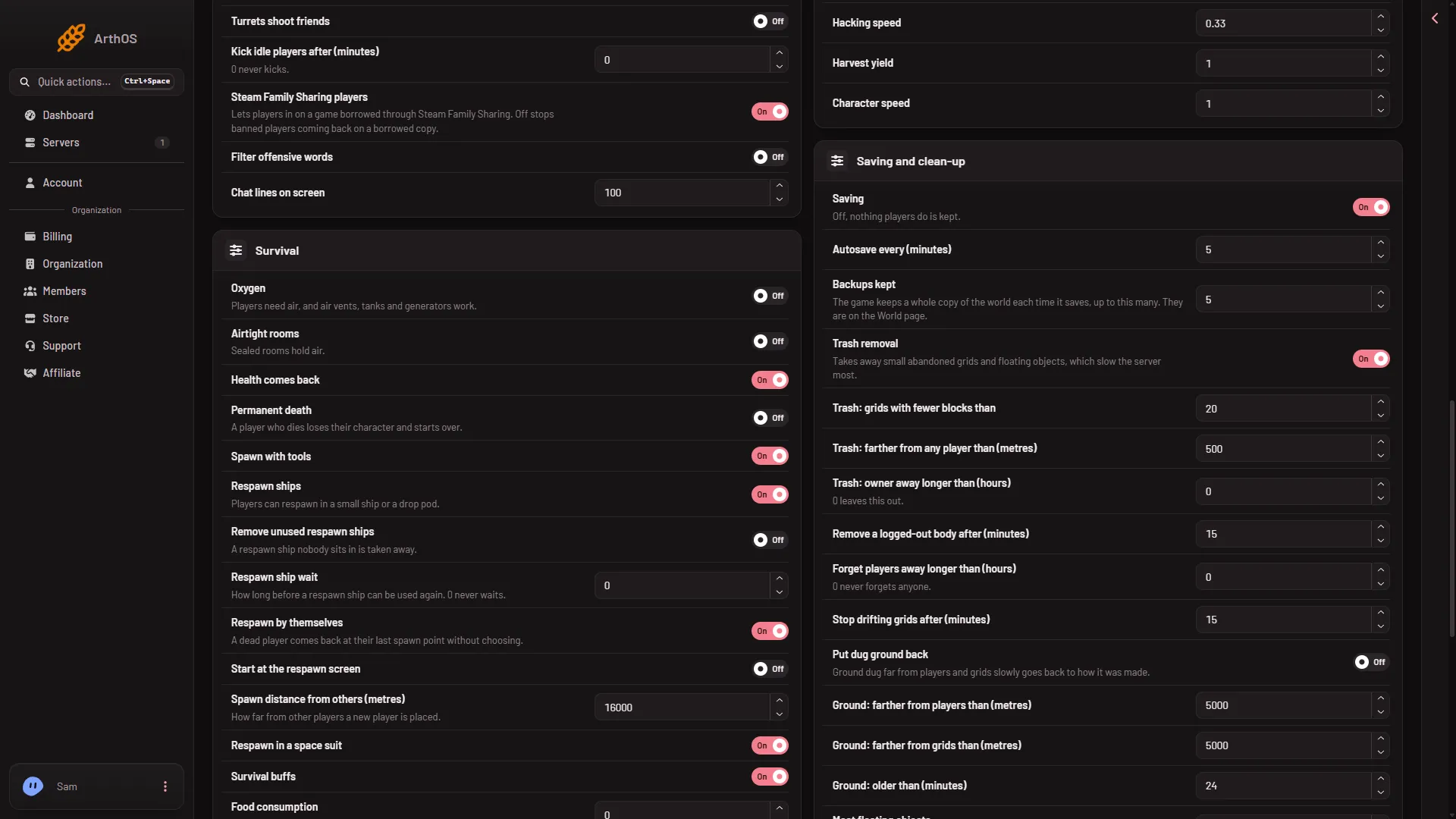
- Open the Saving and clean-up group (1).
- Check that Trash removal (
TrashRemovalEnabled) is on. The rows below decide what counts as trash. A grid is removed only when it passes the checks the game has turned on, and the game’s own trash flags (TrashFlagsValue) decide which checks those are. The Config Editor lists them under Advanced, Show them; the row’s exact name was not checked.- Trash: grids with fewer blocks than (
BlockCountThreshold): a grid under this block count can count as trash. - Trash: farther from any player than (metres) (
PlayerDistanceThreshold): how far from every player a grid must be. - Trash: owner away longer than (hours) (
PlayerInactivityThreshold): 0 leaves this check out.
- Trash: grids with fewer blocks than (
- Set Stop drifting grids after (minutes) (
StopGridsPeriodMin). Grids that drift are stopped after this time. - Lower Most floating objects (
MaxFloatingObjects). Loose items beyond the number are removed. - Turn on Put dug ground back (
VoxelTrashRemovalEnabled) if dug ground is the problem. Ground: farther from players than (metres), Ground: farther from grids than (metres) and Ground: older than (minutes) set how far and how old. - Choose Save, then start the server.
No World settings tab yet? A new server shows only Passwords and Server settings until it has started twice: the first start makes the world, the next start names it as the world that loads. Start it again (or restart it), then stop it to change world settings. The same happens after Make it at the next start on the World page.
- Saving and clean-up
2. Find what is heavy
The game’s own documentation names the usual costs.
- PCU. PCU means Performance Cost Unit. Every block costs some, and the game’s wiki says battle ships “with ridiculous amounts of turrets strapped to them, or large welder/grinder pits, and asteroid-eating drill arrays slow down performance for everyone.”
- Floating objects. Loose items drifting in space. The wiki says an extremely large number of them can slow the game significantly.
- Dug ground. After a battle on a planet, many holes in the voxels (the game’s ground) can lower the speed.
- Sync distance. The distance around each player in which the server sends what moves. Keen Software House, the game’s makers, say a high distance “can slow server drastically.”
- A long production queue. Assemblers with no resources and many queued stacks can cost time.
To find a heavy grid from the panel, open Inventories. Ships and stations lists every grid, the biggest by block count first. With the panel tools running, a grid’s detail line also shows its PCU. Or open Map and choose a ship or station marker: its dialog shows the blocks and PCU. A very big grid, or one moving fast at the time of the lag, is the first suspect. To stop a drifting grid or delete one, see stop a drifting ship and delete a grid.
3. Use the game’s own tools
An admin in game can find the cause from inside the world, without the panel tools. Press Alt+F10 to open the Admin Screen: see the Admin Screen.
- Entity List. Choose a type such as grids, then sort by PCU or block count. You can stop, depower or remove from the list.
- Cycle objects. It finds the extremes: the biggest grid, the fastest, and the grids with the most drills, reactors, production, sensors or thrusters.
Changes made in the Admin Screen apply to the running world and reach the next save. They do not change the server’s settings files.
4. Shorten the sync and view distance
These two are in World settings, World group, and are saved only with the server stopped:
- Sync distance (metres) (
SyncDistance): “How far around each player the server sends what moves. 3000 is the game’s own; more costs much more.” Lower it if you raised it. - View distance (metres) (
ViewDistance): “How far players see. Further costs the server more.”
5. Adaptive simulation quality
Adaptive simulation quality (AdaptiveSimulationQuality) is in the Saving and clean-up group. The panel says it “simulates less detail when the server is busy.” The game’s text says that when CPU load stays above 90 percent, some effects stop happening: block deformation, some voxel cutouts, projectile updates are less frequent, and players see a warning. Keep it on if your server is often busy. It does not fix a world that is too large.
6. Read the simulation speed, and the plan size
The panel tools show the reading. They are off on a new server and load only at the next start. Turning them on at a bad moment means a restart, and the panel tools add nothing players must change: a new server already needs Experimental mode in their game (see the panel tools). So at a bad moment use section 3 first.
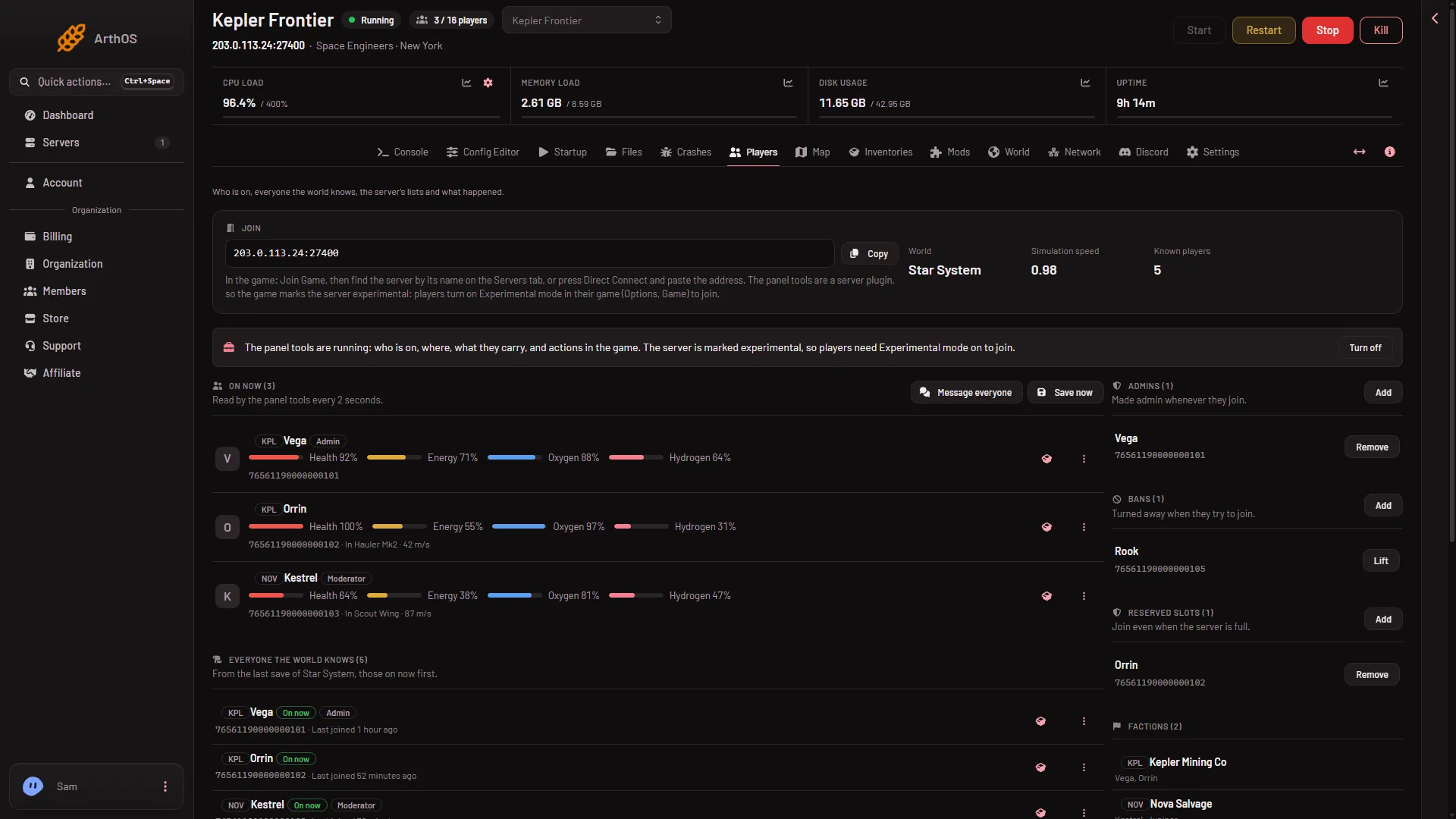
With the tools on, open Players. Simulation speed (1) in the Join band shows the reading with two decimals. A dash means the tools are off or not loaded yet. The Map page also shows the note “The simulation runs at (a number) of full speed: the world is busy.” when the speed is under 0.8. A restart-on-low-speed setting exists in Server settings, Watchdog: slowest simulation speed: see the watchdog.
- Simulation speed
If the clean-up does not help, the world may be too large for the plan. The plans are Small (2 cores, 6 GB memory, up to 8 players), Standard (4 cores, 8 GB, 16 players) and Large (4 cores, 12 GB, 32 players). A bigger plan has more memory.
If it does not work
- The first start. For about 11 minutes after the first start, the server builds .NET files (the game’s runtime) in the background, so it works harder and may run slower. Wait before you chase lag on a new server.
- The speed is a dash. The panel tools are off, or not loaded yet. Restart after turning them on.
- The Save button is greyed out in World settings. The server is not stopped. Stop it first.
- The speed drops only when one player is on. Look at that player’s grid in Inventories or the Map.
- It started after you added a mod. Mods can contain scripts that run on the server. Take the newest mod off the Mods list as a test. The game’s documentation does not give a number for a mod’s cost on the server.
- Players say it lags but the speed reads 1.00. The problem may be their own connection. Not checked with a player on 1.210 as of 15 November 2026.
More about the game: Space Engineers servers.
Sources: spaceengineers.wiki.gg: PCU, spaceengineers.wiki.gg: Admin Screen, spaceengineers.wiki.gg: World Settings, spaceengineers.wiki.gg: SessionSettings