












Your progress went back because the server loaded an older save than you expected. The cause is one of a few things. This guide lists them and how to get the newer work back.
How the game saves
The game writes the world to disk by itself every 30 seconds. That is its default, and the setting is Autosave every (seconds) in the Saving group of Game settings. Anything you did after the last write is not on disk.
With World backups on, which is the default, the game also keeps its own copies of the world beside it. Pocketpair says it keeps 5 copies every 30 seconds, 6 every 10 minutes, 12 every hour and 7 every day.
Why progress goes back
-
The server stopped without saving. When you stop or restart the server from the panel, the panel asks the game to shut down and the game saves first. That needs the game’s API, which is how the panel talks to the game. The panel keeps it on while the Admin password is 16 characters or more (a new server gets a 20-character one). With the API off, a stop loses what happened since the last autosave. The Crashes page then shows the finding The game was stopped without saving. See the API is off.
-
The server crashed. With the default autosave (every 30 seconds), a crash normally loses about the last 30 seconds. If the world could not be saved, more can be lost. A start that the machine ended for lack of memory is a crash too: see out of memory.
-
Someone used Kill. The Kill power action ends the game at once and never saves. The panel also kills a stop that is still running after 90 seconds.
-
Someone put a world back. If someone used Put back on the World page, the world went back to that backup. See roll back a world.
-
Another world is playing. A server can hold several worlds. Only the one marked In play loads: the world the server loads at every start. If someone started a new world or chose another, you are in a different world. Your old one is still on the server.
-
The world came from a co-op game, which is a world you hosted from the game’s own menu. The world and its bases came with it, but players start new characters. See new characters.
Get it back
-
Stop the server. Play this world and Put back are greyed out while the server runs.
-
Open the World page. Under Worlds, check which one has the In play tag (1 in the first picture). If it is the wrong one, choose Play this world on the right one.
-
For a world that went back in time, look at The game’s backups. They are listed newest first. Choose Put back (2 in the first picture) on a backup from before the problem.
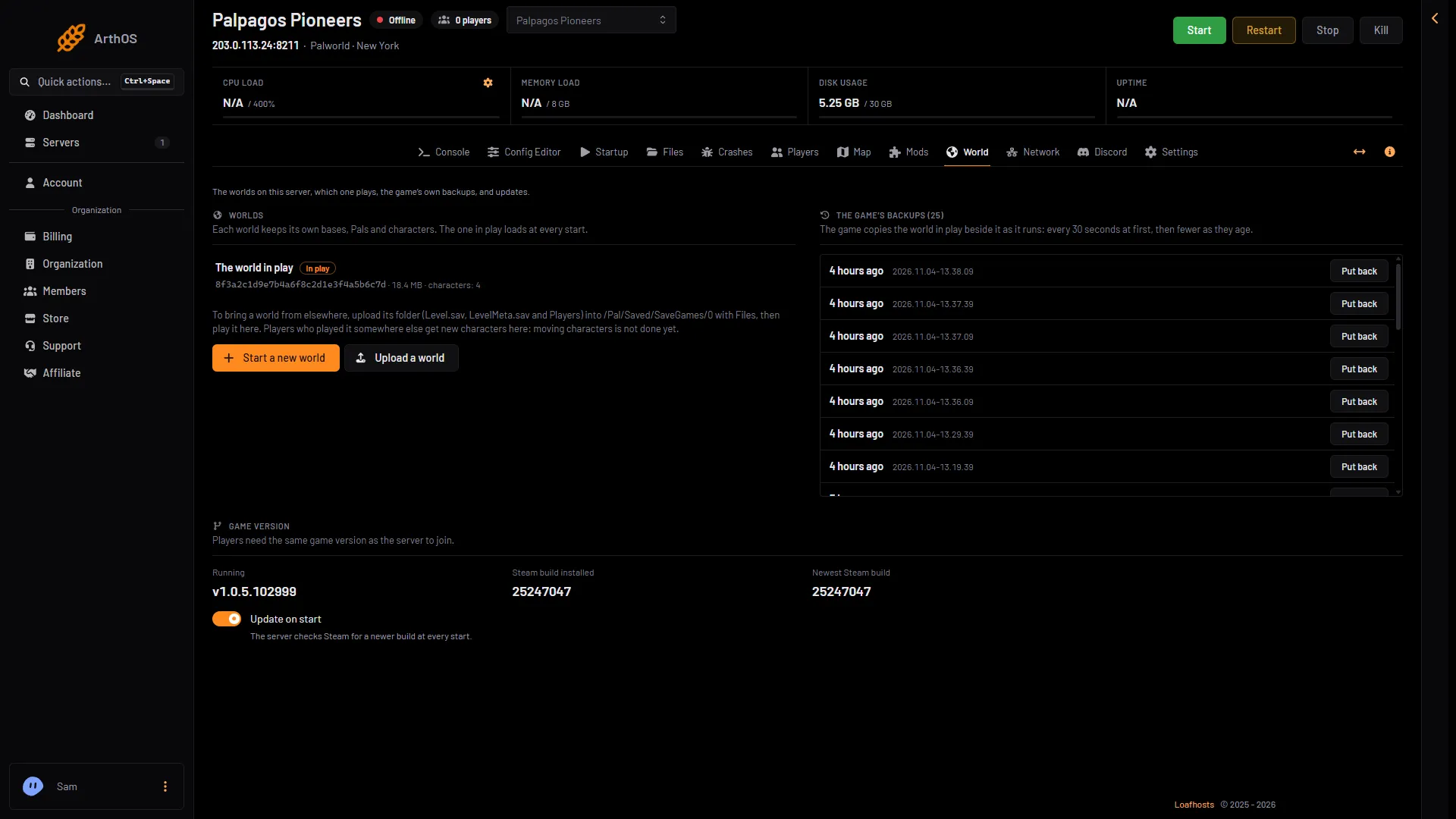
- The world in play
- Put back
-
A box asks you to confirm. Choose Put back (2 in the second picture). The box says “The world goes back to that moment.”
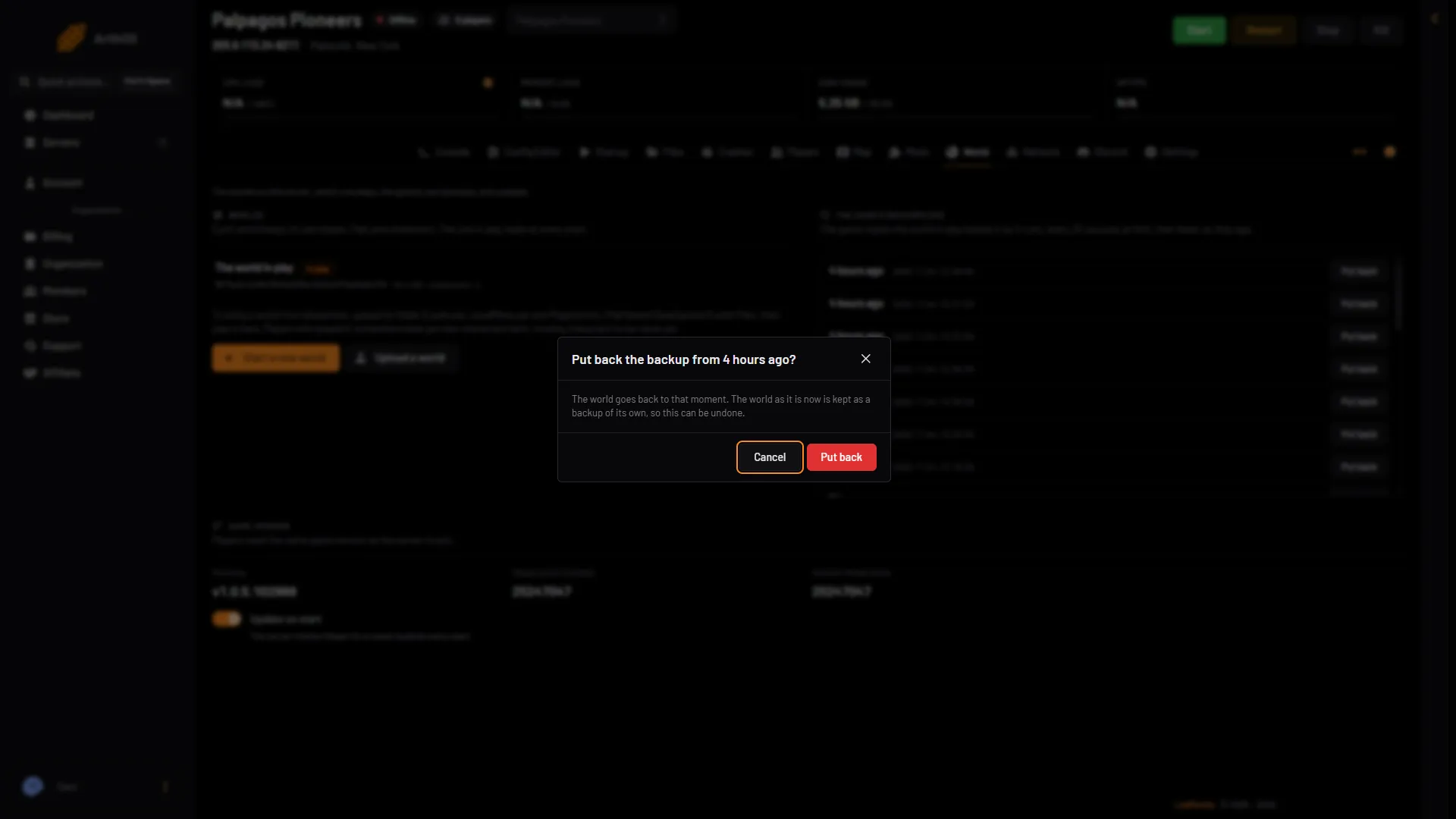
- Which backup
- Put back
-
Start the server. It loads the world at that moment.
The world as it is now is kept as a backup of its own, so you can undo this.
The panel’s own backups are another way. In Settings, open Backups and choose Restore on a backup. Restore stops the server and puts back every file in the backup, not only the world. Settings, passwords, mods and every world go back to that moment, and what changed since is lost. Put back on the World page changes only the world. See back up the server.
Avoid it next time
- Before something risky, such as changing settings or turning mods on, open the Players page and choose Save now. Then take a panel backup: Settings, Backups, Create. With the API off, Save now does not work either. Wait for the next autosave, then restart, or set an admin password of 16 or more first.
- Always stop and restart from the panel. Do not use Kill unless the server is stuck.
- Keep the admin password at 16 characters or more, so the panel can ask the game to save.
- Keep World backups on.
If it does not work
- The backup list is empty. World backups may be off. The page says “No backups of this world yet.” when there are none.
- The backups are all too new. The game keeps fewer copies as they age. The panel’s own backups may go back further.
- Put back is greyed out. Stop the server first. The page says to stop it to change worlds or put a backup back.
More about the game: Palworld servers.
Sources: docs.palworldgame.com: Configuration