
















The Map page shows your world’s planets, trading stations, players and ships on one flat plane. Space has no up, so you pick which plane to look at: Above, Front or Side. You can drag, zoom, follow a player, open a ship, and open any planet in 3D. This guide walks through the page from top to bottom.
Planets and trading stations show with the panel tools on or off. Players come from the panel tools, and ships and stations that players built show live with the tools on. See the panel tools guide for what the tools are, and the Map without the panel tools guide for what is left without them. For the game itself, see Space Engineers on Loafhosts.
Open the map
- Open your server in the panel.
- Choose Map in the tab row.
- The strip at the top says what state the panel tools are in. The page reads again every 3 seconds with the tools running, every 10 seconds when the server runs without them, and every 30 seconds when the server is stopped.
The map opens on the planets with room around them. The game’s trading stations lie thousands of kilometres further out, so you zoom out or use Whole map to see them all.
Choose a plane
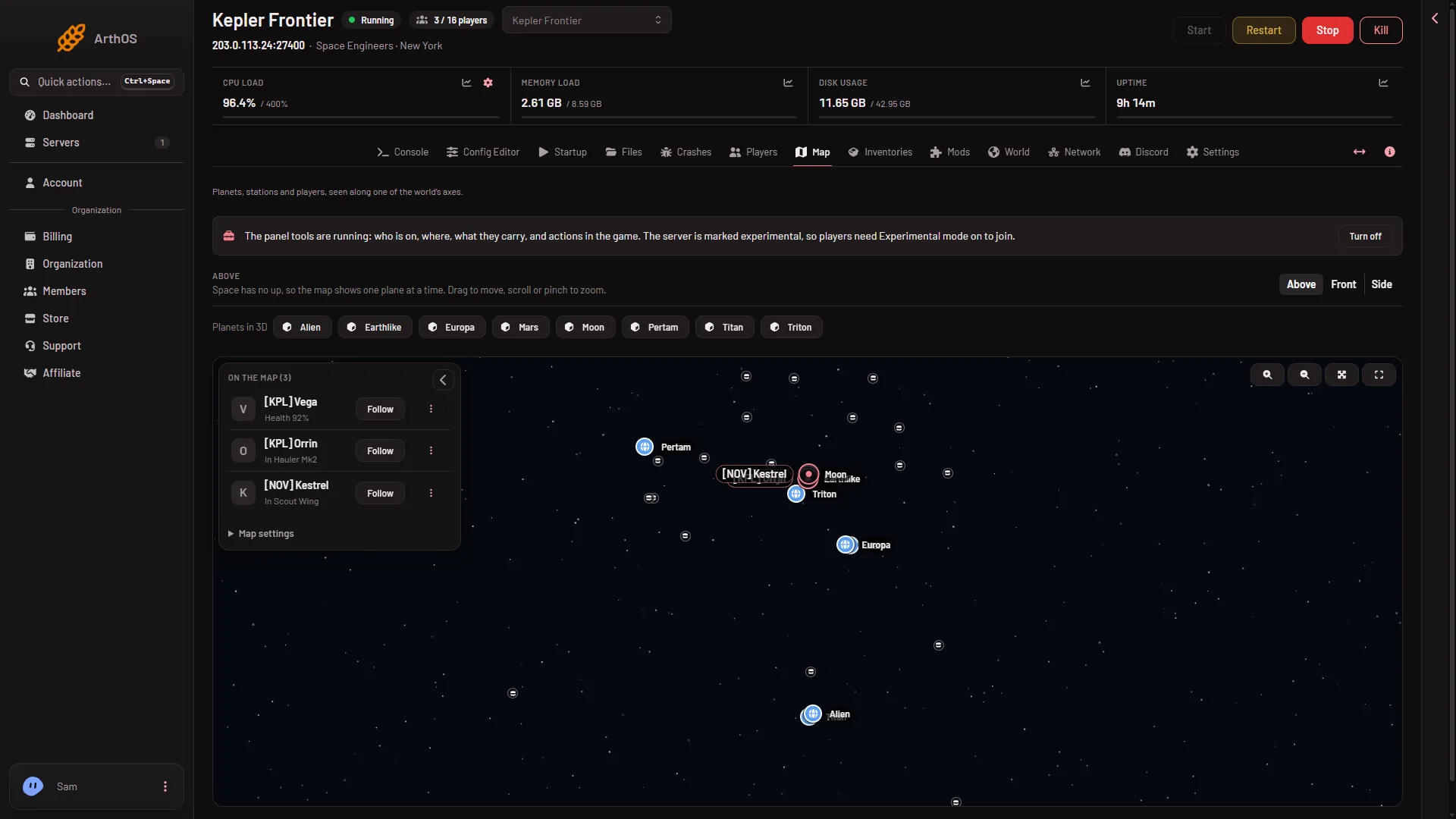
- On the map list
- Front
- Side
- Planets in 3D
- Map settings
Three buttons at the top right pick the plane: Above, Front (2) and Side (3). The list (1) and Planets in 3D (4) are explained below.
- Above: across the map is the world’s x line, and down the map is z. The game’s forward is minus z, so forward is up the map.
- Front: x across, and height (y) up the map. A higher object sits higher on the screen.
- Side: z across, and height up the map.
Changing the plane redraws the same planets, stations, players and ships on the other plane. The map always opens on Above. Your other choices (see Map settings below) are remembered.
What you see
- Planets. Each planet is drawn to scale as a disc, with its air as a glow around it. A globe pin and the planet’s name sit at every zoom. Hover or tap a pin for its ground radius and how high its air reaches. Press a pin to open that planet in 3D.
- Trading stations. The game’s own outposts and stations, shown as small pins named with their faction tag once you zoom in. See the trading stations guide.
- Players. A marker with a name, and the faction tag first when the player has one. Faint lines called paths show where each player and ship has been.
- Ships and stations players built. A ship or station is called a grid in the game. One marker each. Stations that stay put, large ships and small ships have different colours. They need the private map permission on your account. Without it the list says that ships and stations show for those who can see the private map.
The player list
On the left, On the map (1) lists everyone who is on, with a count in its title. Each row has the name, a second line (the ship they are in, Dead, or their health), a Follow button and a three-dots button. Follow keeps the view centred on that player as they move. Dragging the map or pressing Whole map stops following. Not checked with a player on 1.210 as of 15 November 2026: the player markers and Follow. For the full walk-through, see Find a player on the map.
Press the chevron button to fold the list away, and the Players button brings it back.
Open a ship or a station
Press a ship’s marker. Its dialog shows what it is, its blocks and PCU (the limit-points that measure how heavy a grid is), who owns it and where it is.
- See what it holds opens it on the Inventories page.
- Send a player here with Move puts a player beside the ship, never inside it.
- Stop it sets the ship’s speed to zero. It is not offered for stations.
- Delete does not delete at once. The first press shows a warning, and the button becomes Delete for good. Pressing that takes the ship and everything in it out of the world. The game’s own backups still hold it, but the panel cannot undo it.
These buttons need the panel tools running and permission to act in the game. Not checked with a player on 1.210 as of 15 November 2026.
Map settings
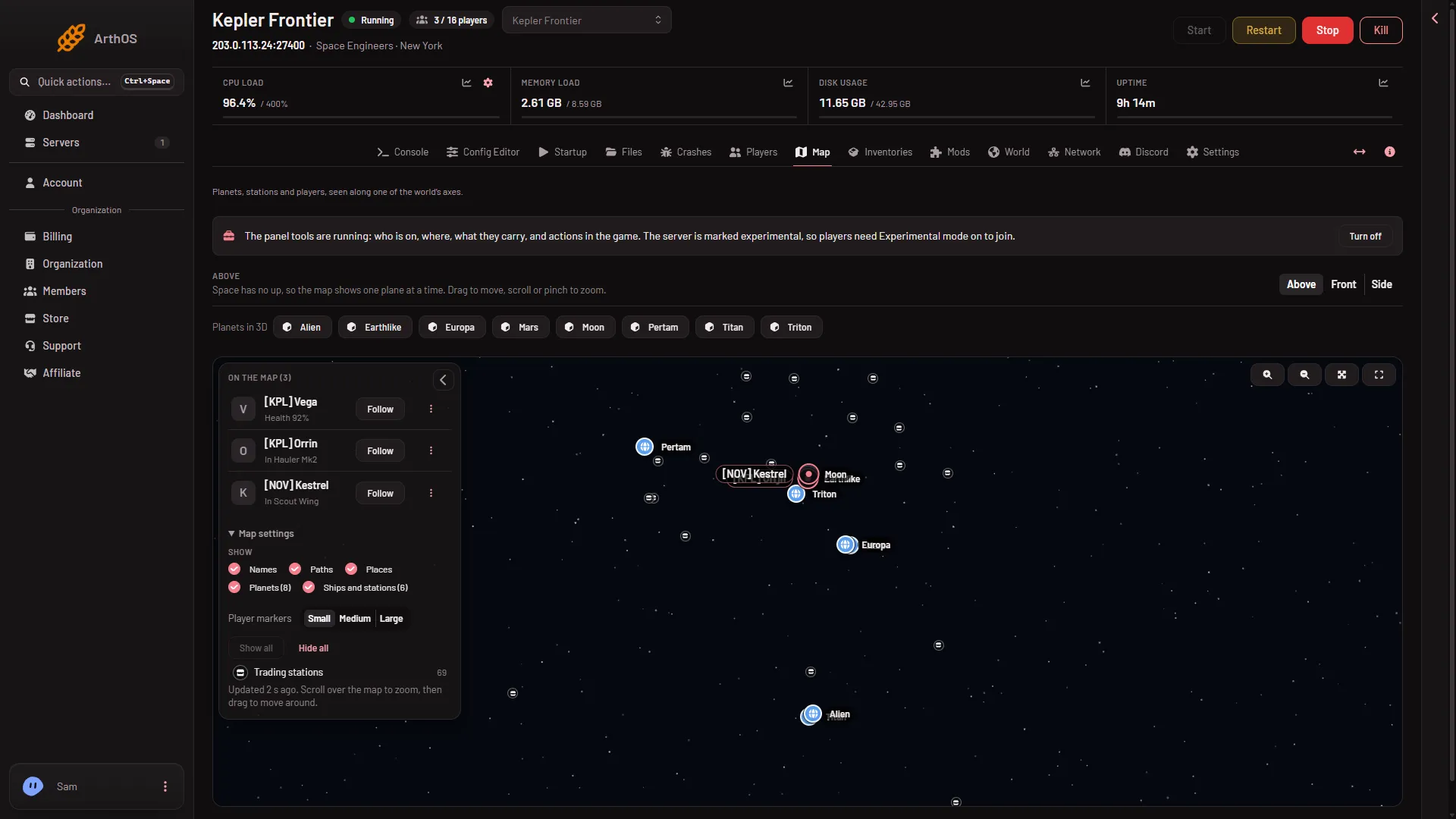
- Map settings
Press Map settings (1) to open it. Under Show you can turn on or off Names, Paths, Places, Planets and Ships and stations. Player markers has Small, Medium and Large. When Places is on, Show all and Hide all and a Trading stations switch let you hide the stations. Your choices are remembered for your account and apply to all your Space Engineers servers.
Zoom and move
- Scroll to zoom at the pointer, drag to move, or pinch with two fingers.
- Zoom in and Zoom out are buttons at the top right of the map.
- Whole map shows everything again.
- Full screen covers the whole page. It reads Leave full screen while on. Press Esc to leave.
The closest zoom is about 100 metres to 20 pixels.
Open a planet in 3D
Below the plane buttons is a row called Planets in 3D (4), with one button for each planet. When you zoom in close on one planet, its button reads See (name) in 3D. Both open the planet’s own page. See Planets in 3D.
If it does not work
- The list says “Players show here with the panel tools on.” The tools are off. Use Turn on the panel tools on the strip. They load at the next start. A new server already makes players turn on Experimental mode in their game (Options, Game), so the tools add nothing they must change.
- The list says “The panel tools load at the next start.” The tools are on but the running game started without them.
- No ships show. Your account needs the private map permission, or the world has no player-built ships yet. Without the tools, ships show as of the world’s last save.
- A message about the world being busy. Under 0.8 of full speed the page says the world is busy. This is the game’s own speed.
- Nothing at all. A world that has never been saved and never run has nothing to draw.