

















Every ship and station that players built shows on the Map page as one marker. Point at a marker to read its name, size and owner. Press it to open its dialog. In Space Engineers, ships and stations are both called grids: a grid is a set of blocks joined together.
You need the private map permission to see grids. Ask the organization owner for a role with it if the markers are missing. The permission is live-map.private. Roles are changed on the organization page: Settings, Access, Manage roles.
Find a ship or station
- Open the Map page.
- Zoom in on the area you care about with Zoom in, or drag the map to move it.
- Look at the markers. Stations (grids fixed in place), large grids and small grids have three different colours.
- Point at a marker, or tap it on a phone. A line shows the name, the kind (Station, Large grid or Small grid), the block count and PCU, who owns it, and its speed if it moves faster than 1 m/s. PCU is the game’s performance cost for a grid.
- A grid nobody owns reads “Nobody owns it”.
If you cannot see the grid names, open Map settings at the bottom of the left panel and check Names under Show. The same list has a Ships and stations box. Untick it to hide every grid, tick it to bring them back. The choice is kept for your account.
Open a grid’s dialog
Press a marker. A dialog opens with the grid’s name.
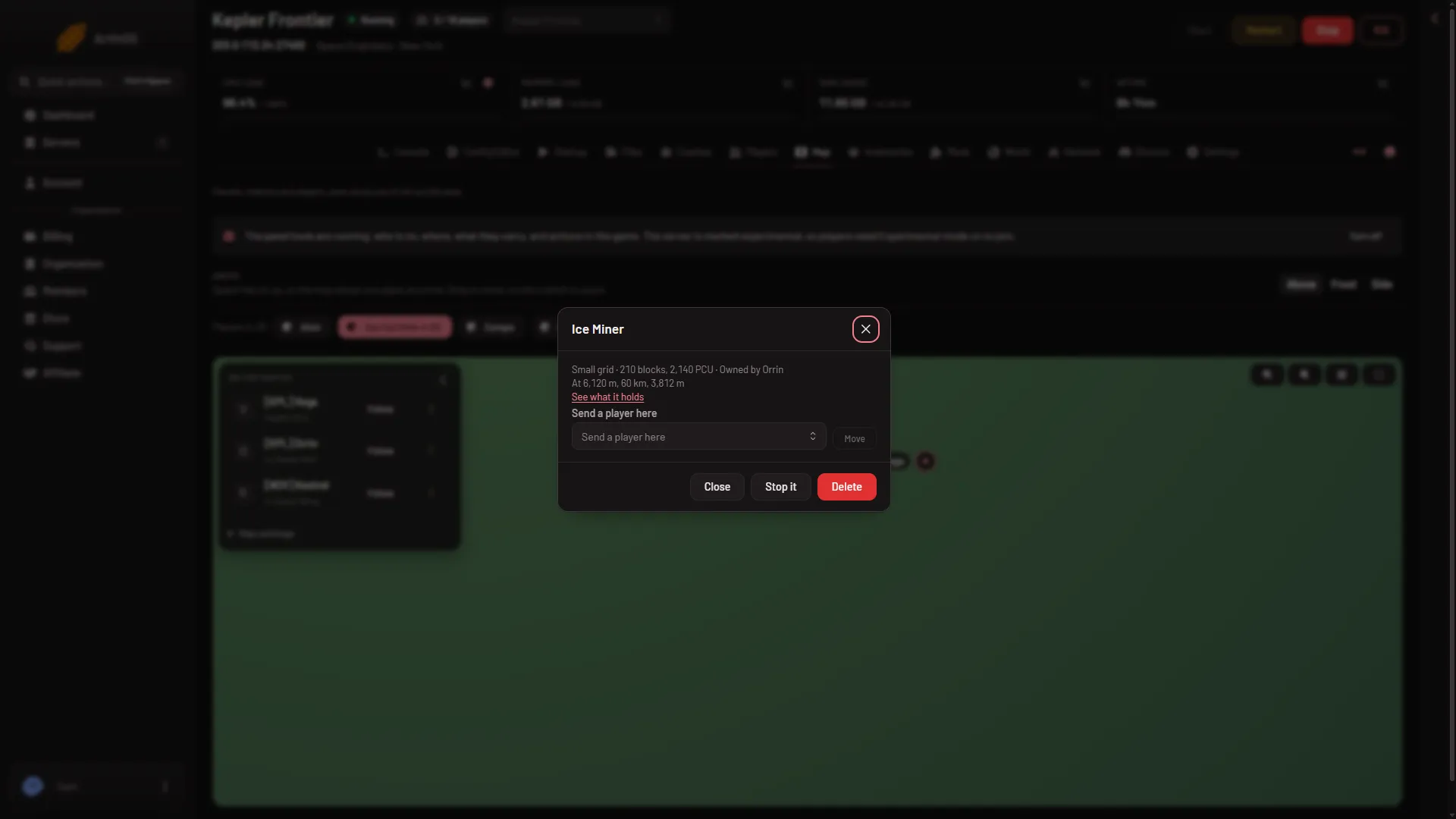
- See what it holds
- Send a player here
- Stop it
- Delete
The dialog shows:
- The kind, block count, PCU and owner.
- Its position as “At x, y, z”, in metres from the middle of the world.
- See what it holds (1), a link to the Inventories page with this grid open. See the Inventories tour.
- With the panel tools running: Send a player here (2) with Move, Stop it (3) and Delete (4).
Stop it and Delete are the buttons in the footer. They have their own guides: stop a drifting ship and delete a ship or station. Both act in the game at once.
Live, or as of the last save
With the panel tools running, grids are read live. The panel asks the game about every 10 seconds, so a moving ship moves in steps about every 10 seconds.
With the panel tools off, or with the server stopped, the panel reads the world’s last save instead. The map then says “Ships and stations as of the world’s last save”, with how long ago. From a save the panel has no PCU and no speed, so the hover line shows only the block count. Ships do not move until you turn the tools on. Read the map without the panel tools for the rest.
A new server starts with the panel tools off. Turning them on is covered in the panel tools guide. A new server already needs players to turn on Experimental mode in their game (Options, Game), with the panel tools off or on, so the panel tools add nothing they must change. Experimental mode explained.
The game’s own stations are not ships
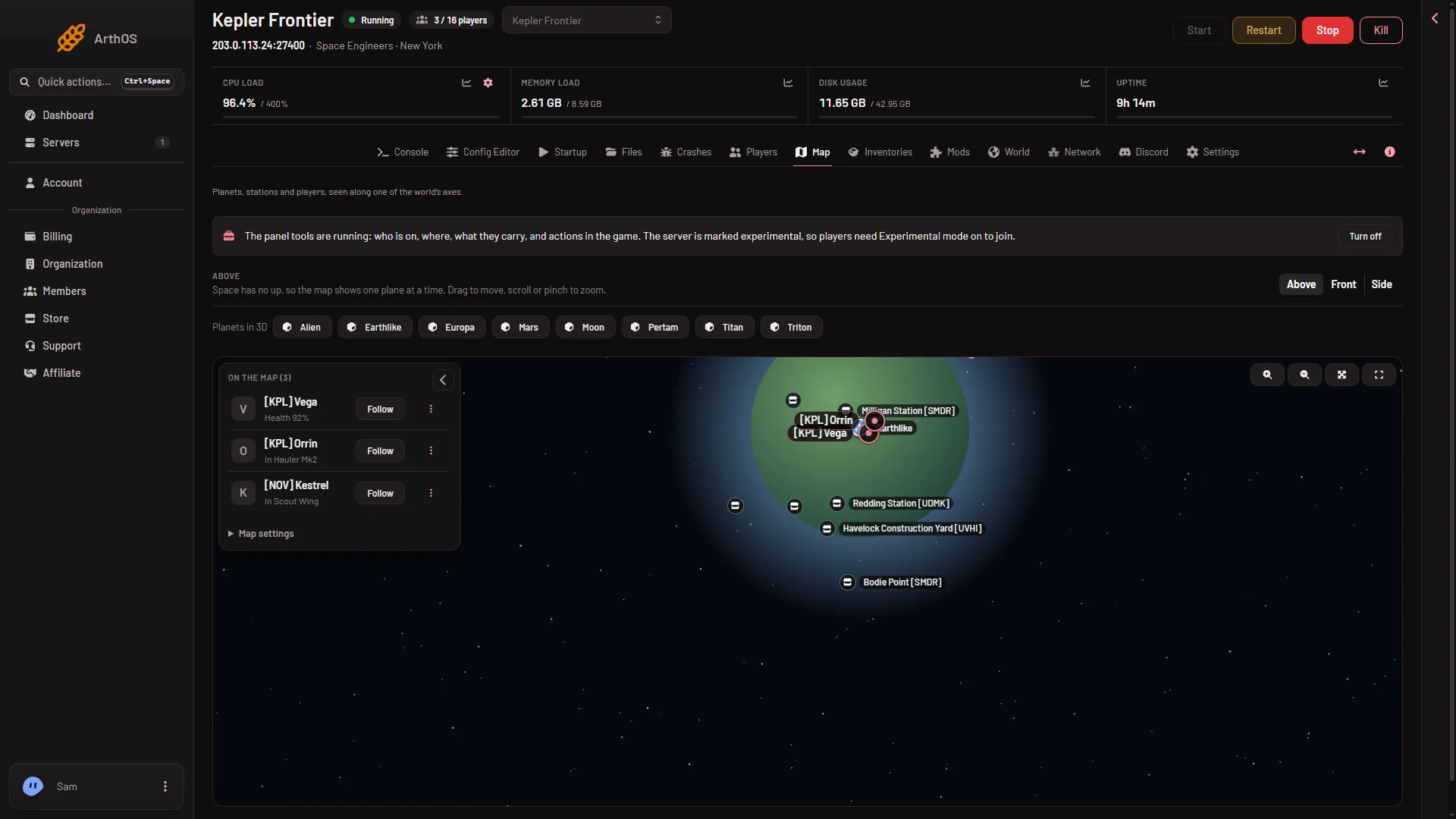
The pins named with a faction tag, such as the stations in the picture below, are the game’s trading stations. They come from the world’s save and never count as ships. You can hide them with the Trading stations filter in Map settings.
If it does not work
- No ships or stations show. Your role lacks the private map permission. The list on the left then says “Ships and stations players built show for those who can see the private map.”
- A ship is where it was an hour ago. The panel is reading the last save. Turn on the panel tools to see it move. A new server starts with them off.
- The ship you want is not on the map. It may have been removed by the world’s clean-up settings, or the server has not saved it yet.
More about the game: Space Engineers servers.