









Sandbox settings are the rules of your Project Zomboid world: how many zombies, how fast they move, how much loot, how long a day is and when the power goes out. They live in one file, <Server Name>_SandboxVars.lua. Open the Config Editor, choose that file’s tab, change a row and choose Save.
What sandbox options are
PZwiki describes Custom Sandbox as the way a player adjusts the game settings to their liking. On a single-player game you pick them on a screen when you start. On a server they are in the sandbox file instead. The server ini holds the other settings. See the server ini explained.
On Loafhosts the file is .cache/Server/<Server Name>_SandboxVars.lua, beside the ini. With the default Server Name servertest that is servertest_SandboxVars.lua.
On a server you run yourself, the file is in the Server/ folder inside the game’s Zomboid data folder (~/Zomboid on Linux, C:\Users\<you>\Zomboid on Windows), as servertest_SandboxVars.lua. The world is in Saves/Multiplayer/servertest.
What is in the file
The file is a Lua table. It starts with SandboxVars = {. Above each option the game writes a comment that explains it. Choices are stored as numbers, and the comment lists what each number means:
    -- How zombies are distributed across the map. Default = Urban Focused
    -- 1 = Urban Focused
    -- 2 = Uniform
    Distribution = 1,
The Config Editor shows the names instead of the numbers, with the comment as help text.
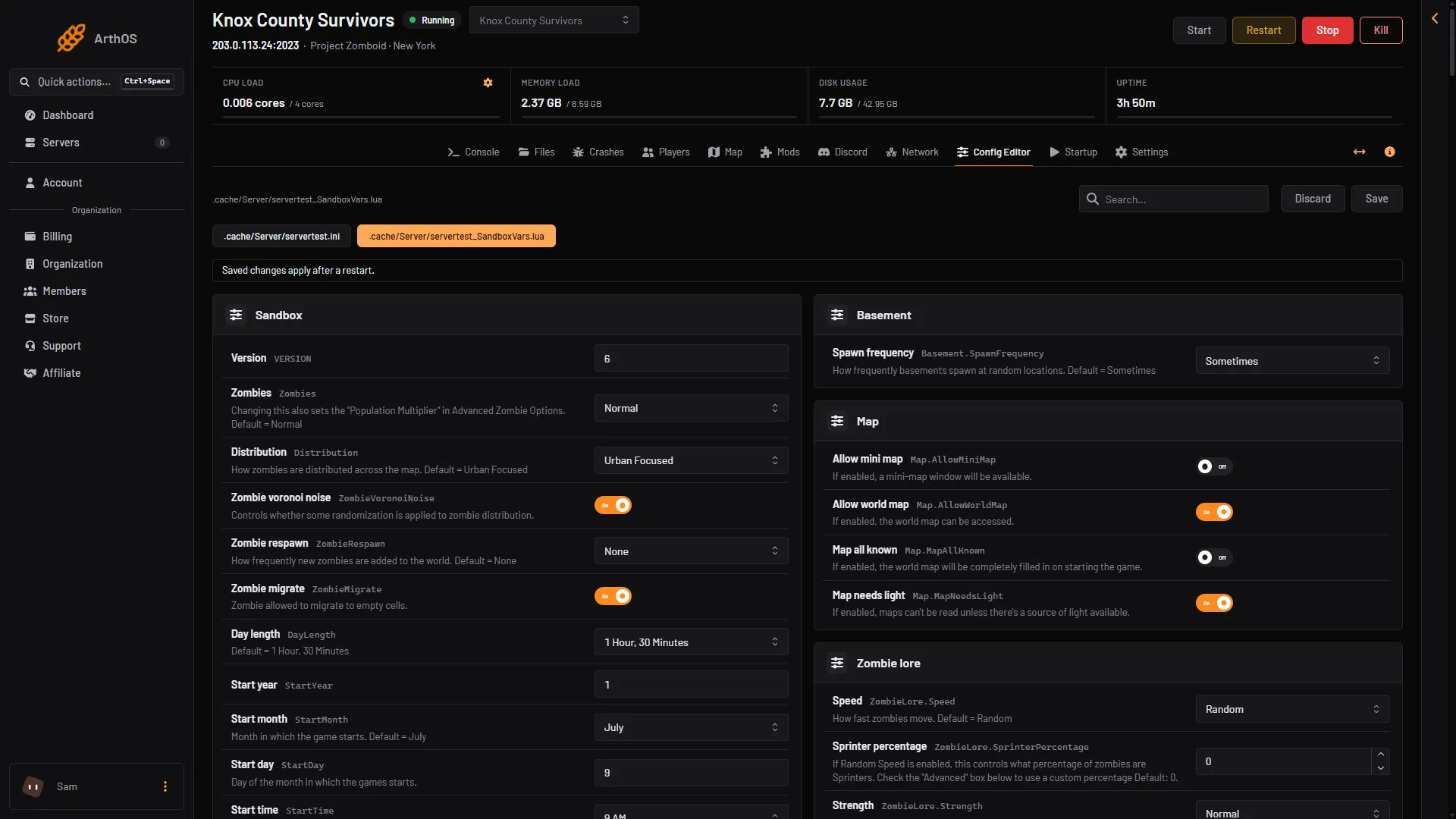
- Sandbox file tab
- Zombies
- Distribution
- Day length
The main groups
The editor groups each option by the table it sits in. Options at the top of the file are in Sandbox. These are the guides for each topic:
| Topic | Where it is | Guide |
|---|---|---|
| Zombie count, distribution, respawn | Sandbox and Zombie config | Zombie population |
| Zombie speed, strength, toughness | Zombie lore | Zombie settings, sprinters |
| Infection and transmission | Zombie lore | Infection settings |
| Loot amounts and respawn | Sandbox | Loot settings |
| Skill XP rates | Multiplier config | XP multiplier |
| Day length, start date, start time | Sandbox | Day length and start date |
| Water and power shut-off | Sandbox | Water and power shut-off |
| Helicopter event | Sandbox | Helicopter event |
| Vehicles and fuel | Sandbox | Vehicle settings |
| World map, basements | Search Map or Basement in the Config Editor | this guide |
Not every option is in a guide of its own. Use the Search box in the Config Editor to find any option.
Edit them in the Config Editor
- Open Config Editor and choose the tab
.cache/Server/<Server Name>_SandboxVars.lua. - Find the row. Switches, lists and number boxes follow the game’s own comment.
- Change it and choose Save.
- Restart the server. The page says “Saved changes apply after a restart.”
If the file does not exist yet, start the server once. The game creates it at its first start. You can also find it under Files, then .cache, then Server.
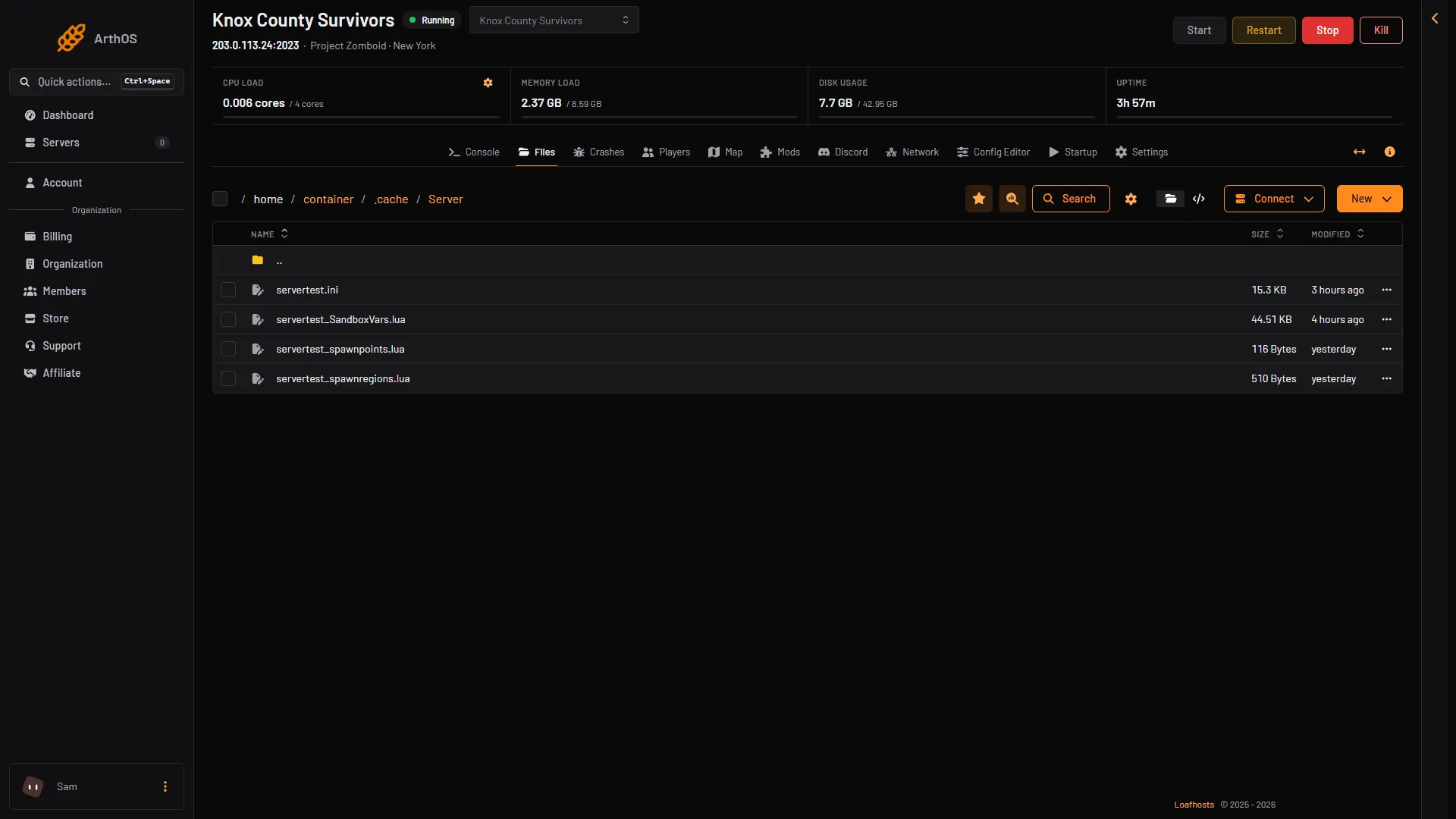
- The sandbox file
Which options change an existing world
PZwiki and the game’s own comments describe a few options as applying at the start of the game or at character creation:
- Start year, start month, start day and start time (
StartYear,StartMonth,StartDay,StartTime): the date and hour the game starts. TimeSinceApo: how long since the outbreak, which PZwiki says affects the starting world’s erosion and food spoilage.MapAllKnown: the game’s comment says the world map is filled in “on starting the game”.StarterKit,CharacterFreePointsandAllClothesUnlocked: the game’s comments tie them to a new character.
For every other option, neither PZwiki nor The Indie Stone says whether a change reaches areas players have already explored or only new ones. Not checked on Build 42.21 as of 18 October 2026.
If the file breaks
A sandbox file the game cannot read stops the server at its start. The panel guards against this:
- Files refuses to save a sandbox file the game cannot read. It says the file was not saved and why.
- The panel keeps a copy of the last sandbox file that read. If the file does not read at a start, the panel puts that copy back and keeps the broken file beside it, with
.brokenadded to its name. - The Crashes page then shows “The sandbox settings could not be read” and names the setting to check in the Config Editor.
If it does not work
- A change did not apply. Restart the server after Save.
- Your edit is gone after a start. The file did not read, and the panel put the last good copy back. Look for the
.brokenfile, fix the line and save again. - A number is refused. Each number has a range in the game’s comment, such as Min 0 and Max 4. Stay inside it.
More about the game: Project Zomboid servers.
Sources: pzwiki.net: Custom Sandbox, pzwiki.net: Server settings